






To change Shopify inventory location to 3rd party, you must create or activate a new location in Shopify, assign stock to it, and adjust fulfillment priority so orders route to the 3PL warehouse.
If your orders are still shipping from the wrong place, your location priority or fulfillment service is likely misconfigured.
If you're scaling and moving from self-fulfillment to a 3PL, this guide will walk you through exactly how to change Shopify inventory location to 3rd party.
What Is an Inventory Location on Shopify?
An inventory location in Shopify is a physical or virtual place where your products are stocked and fulfilled.
This could be:
- Your home
- Retail store
- Warehouse
- Dropshipper
- 3PL partner
In Shopify, every product’s stock is tied to one or more Shopify inventory locations. When a customer places an order, Shopify checks which location should fulfill it.
If you don’t configure locations properly:
- Orders ship from the wrong place
- Inventory shows inaccurate quantities
- 3PL can’t sync stock correctly
- Overselling happens
That’s why understanding what is an inventory location on Shopify is critical before switching to a third-party warehouse.
How to Change Shopify Inventory Location to 3rd Party (Step-by-Step)
Step 1: Create the Third-Party Location in Shopify
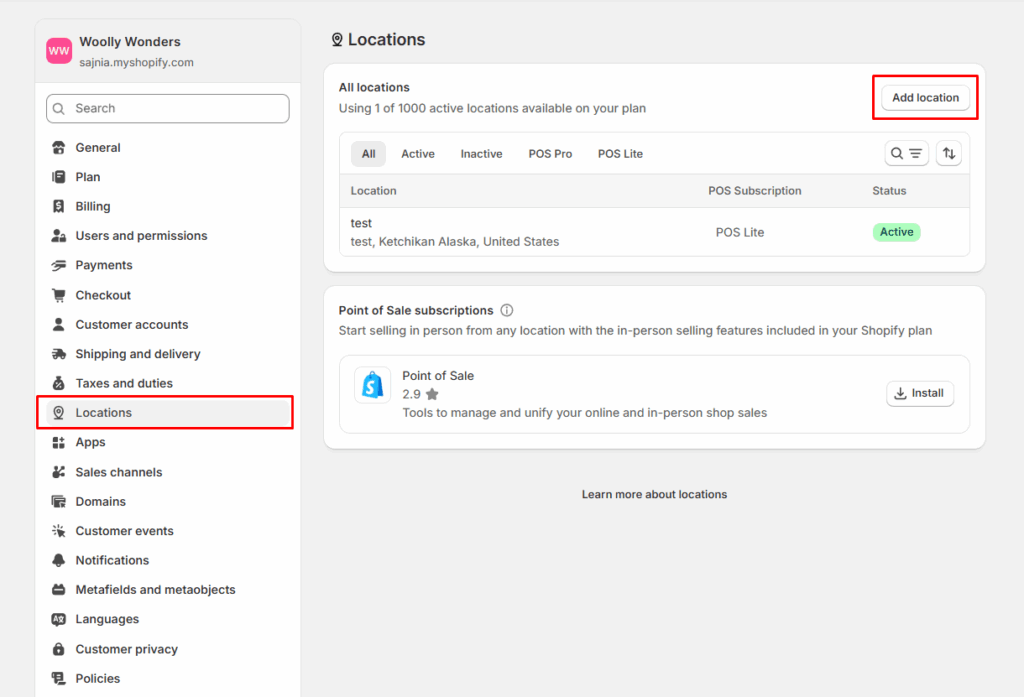
- Log in to your Shopify admin dashboard.
- Go to Settings > Locations.
- Click on “Add location” to create a new inventory location
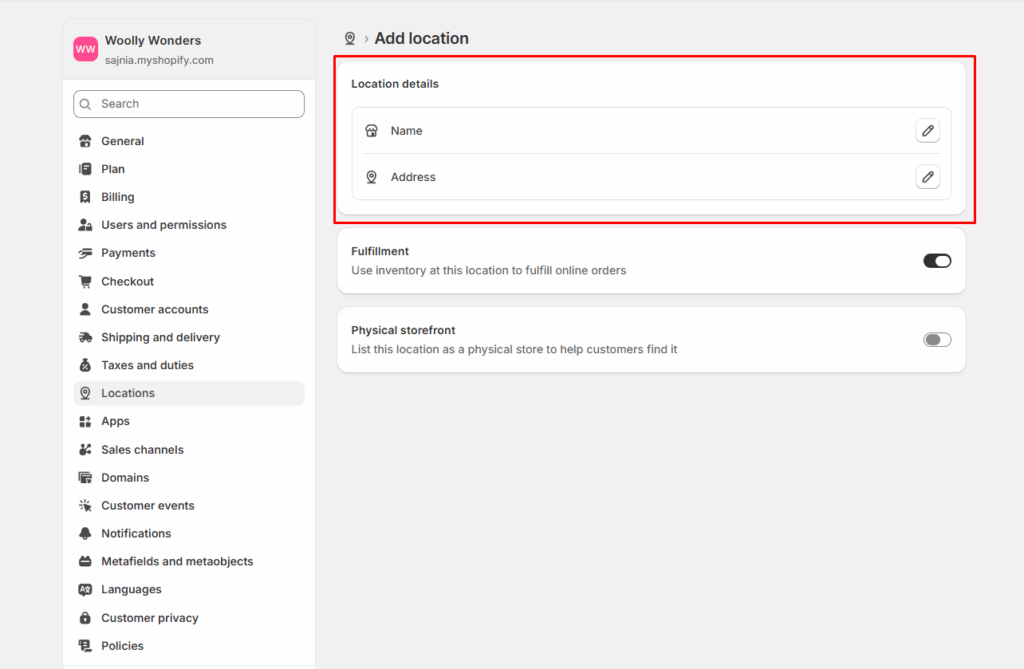
- Fill in the required details like name and address.
Step 2: Assign Products to the Third-Party Location
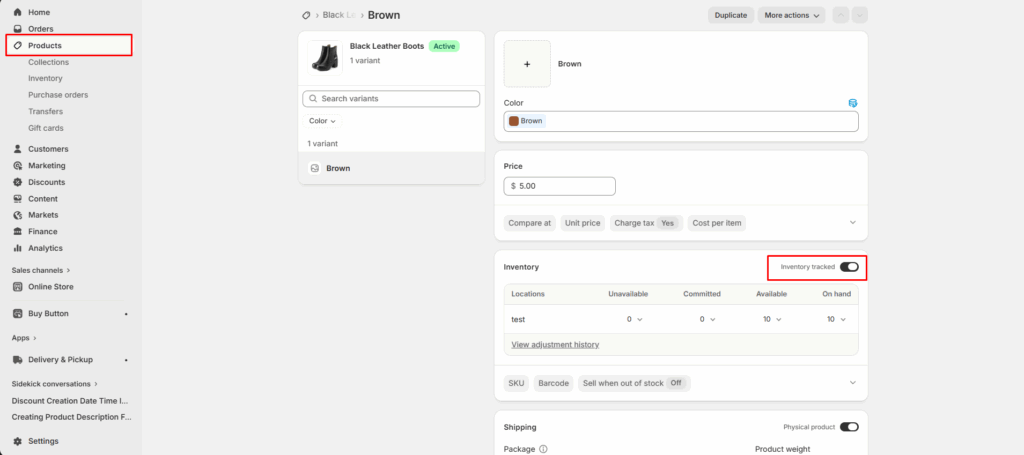
- From your Shopify admin, navigate to Products.
- Click the product you want to update.
- In the Inventory section, make sure Track quantity is enabled. If this is disabled, Shopify cannot properly allocate stock to different locations.
Step 3: Edit Location Assignment
Click the Edit locations option.
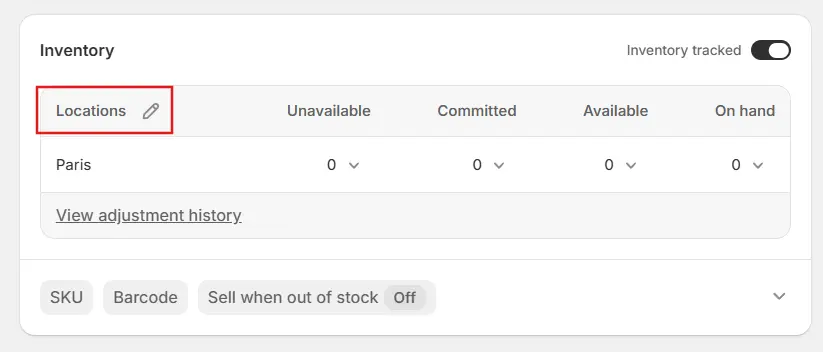
Step 4: Select the Third-Party Location
- Check the box next to your third-party warehouse.
- Uncheck any locations where the product is no longer stored.
- Input the current inventory quantity available at the third-party location.
- Click Save to confirm.
Step 5: Configure Order Fulfillment Priority
- Go to settings > shipping and delivery, and check the option shown below.
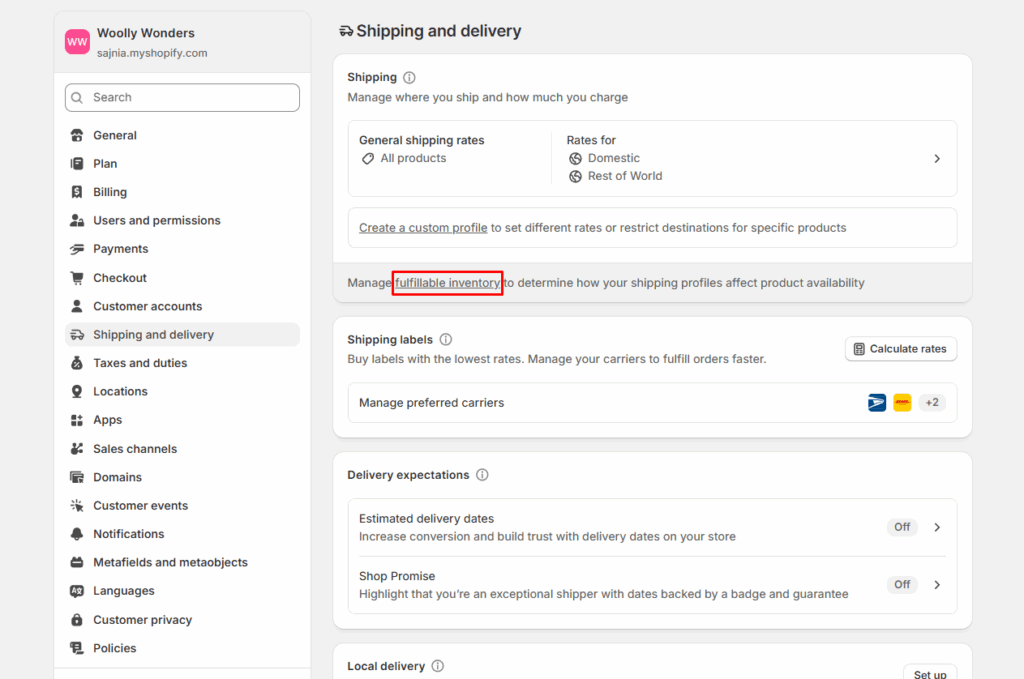
Step 6: Connect a Fulfillment App (If Required)
- Visit the Shopify App Store and install your 3PL’s official app.
What This Setup Achieves
After completing these steps:
- Inventory is accurately assigned to the correct location
- Orders are routed according to your priority rules
- Stock levels remain synchronized
- Overselling risks are reduced
- Fulfillment becomes automated and scalable
Properly configuring Shopify inventory locations ensures smooth coordination between your internal warehouse and external fulfillment partners.
Why Changing Shopify Inventory Locations to a 3rd Party Is Necessary
Changing Shopify inventory locations to a 3rd party becomes necessary when your current fulfillment setup starts limiting growth, accuracy, or operational efficiency.
- Order Volume Is Increasing Beyond Manual Handling
- Inventory Accuracy Becomes Critical
- Faster Shipping Expectations
- Limited Storage Space
- Multi-Location and Omnichannel Selling
- Reduced Operational Risk
Tips for Managing Multiple Inventory Locations in Shopify
To successfully manage multiple inventory locations in Shopify, you must standardize inventory tracking, define clear fulfillment priority rules, sync stock in real time, and audit inventory regularly. Without structure, multi-location setups quickly lead to overselling, routing errors, and inaccurate reporting.
If you’re using multiple Shopify inventory locations, these best practices will help you stay in control:
- Define a Clear Fulfillment Priority Strategy
- Enable Inventory Tracking for Every SKU
- Use Consistent SKU Naming Conventions
- Perform Regular Inventory Audits
- Use Transfers Instead of Manual Adjustments
- Monitor Low-Stock Alerts Per Location
- Avoid Duplicate Fulfillment Services
- Understand What an Inventory Location on Shopify Really Does
- Plan for Peak Seasons
- Use Reporting to Analyze Performance by Location
Conclusion
Changing and managing Shopify inventory locations especially when moving to a third-party fulfillment partner is not just a backend adjustment. It’s a structural decision that directly impacts fulfillment accuracy, delivery speed, cash flow, and customer satisfaction.
As your business grows, understanding what is an inventory location on Shopify and properly managing Shopify inventory locations becomes essential. Set it up correctly once, monitor it consistently, and your inventory system will support growth instead of slowing it down.
Frequently Asked Questions
1. How to change Shopify inventory location to 3rd party?
To change Shopify inventory location to 3rd party:
- Go to Settings > Locations and add your 3PL warehouse.
- Assign products to that new location.
- Enable Track quantity for each product.
- Configure order routing priority so Shopify fulfills from the third-party location as intended.
- Connect your 3PL app (if applicable) for automatic syncing.
2. What is an inventory location on Shopify?
An inventory location on Shopify is a physical or virtual place where your products are stored and fulfilled from.
3. Can I use multiple Shopify inventory locations at the same time?
Yes. Shopify allows you to manage multiple inventory locations depending on your subscription plan.
4. Will changing inventory location affect my existing orders?
No. Changing Shopify inventory locations does not affect already placed orders.



About the author
Sajini Annie John
Meet Sajini, a seasoned technical content writer with a passion for e-commerce and expertise in Shopify. She is committed to helping online businesses to thrive through the power of well-crafted content.