





![How to Change Shopify Cart Icon in Just 4 Steps [All Themes]](https://www.identixweb.com/wp-content/uploads/2026/02/19-02-Thu-Blog-How-to-Change-Shopify-Cart-Icon-in-Just-10-Minutes_.webp "How to Change Shopify Cart Icon in Just 4 Steps [All Themes]")
Your Shopify cart icon feels like a tiny thing, but it matters more than most new store owners think.
It sits in your header on every page. It is the button shoppers look for when they’re ready to check out or review their cart.
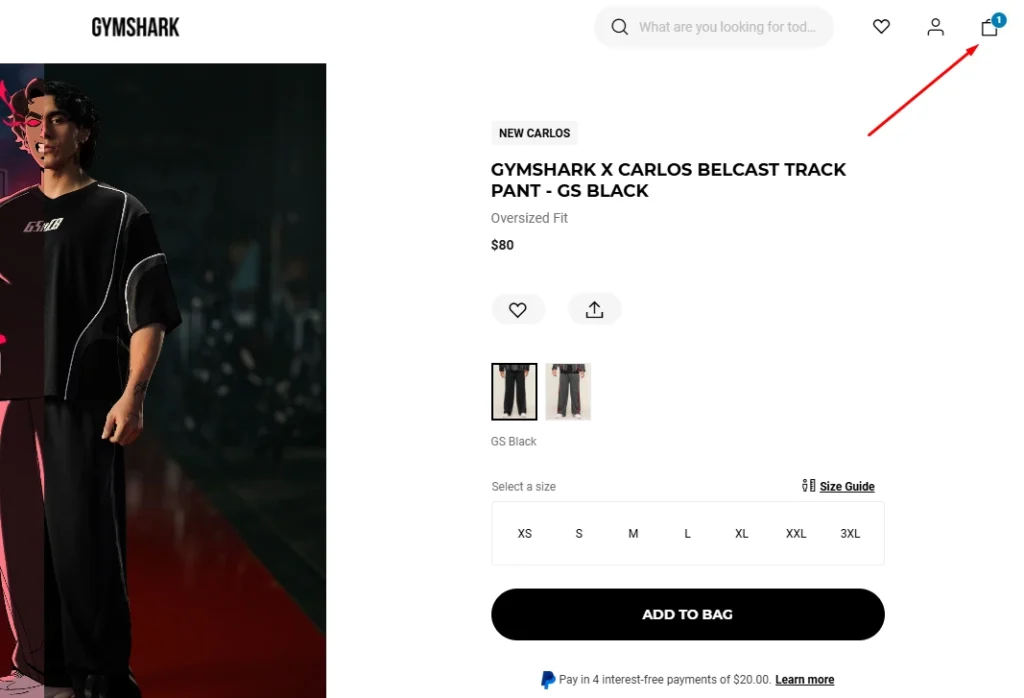
The problem is, a lot of Shopify themes ship with a cart icon that looks too thin, too small, or easy to miss.
If shoppers can’t spot it fast, they hesitate, tap around, or leave. On mobile, this gets worse because the header space is tight and every tap needs to feel obvious.
In this guide, you’ll learn how to change the Shopify cart icon in a few simple steps. You will also get tips on how to change the icon so your shoppers never miss it.
How to change cart icon in Shopify [Step-by-step Guide]
Note: Before you start changing the Shopify cart icon, back up your current theme. Go to Online Store > Themes > 3 Dots Icon > Duplicate. Make the changes in the duplicated theme.
Step 1: Get your HTML-ready cart icons
Go to websites like SVG Repo or Icons8 to download HTML-ready icons for your Shopify store.
Step 2: Edit your Shopify Theme
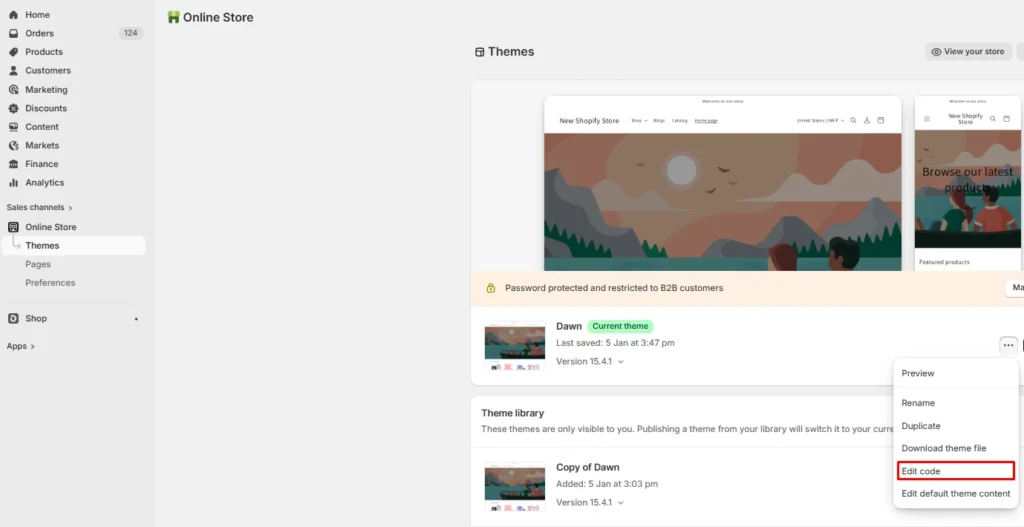
Navigate to Online Store > Themes. Click on the 3 dots icon next to Edit theme and click on Edit code
Step 3: Locate files for the cart icon
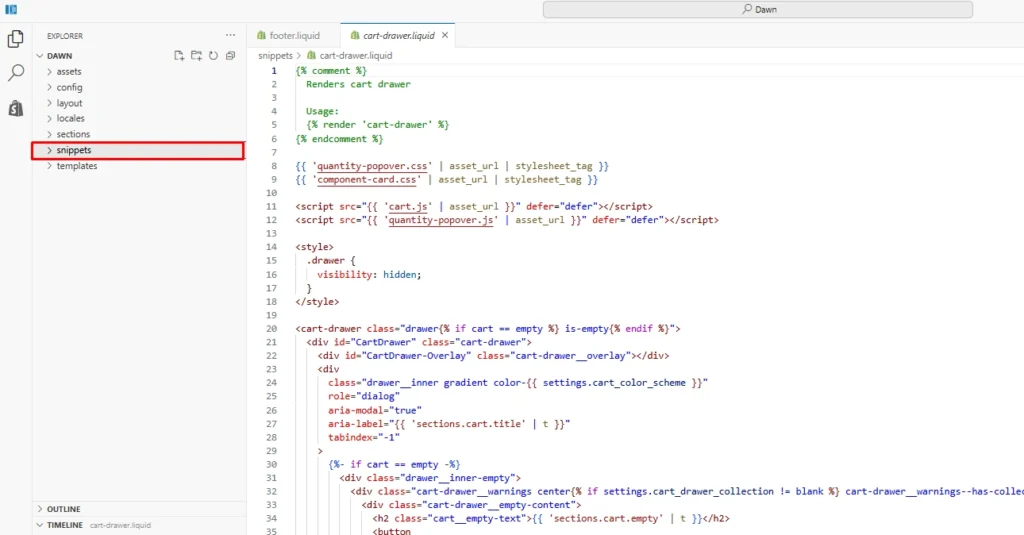
Here, locate the snippets folder and under it check for the file ‘icon-cart.liquid’. Here, you need to replace the current code with the new cart icon code you downloaded.
Make sure the design and dimensions of the new icon go well with your store design.
Step 4: Save changes and check
Save the changes and check if it works just the way you wanted in your store. Once everything is set, publish the new icon in your current theme.
Upgrade Your Cart Experience After the Icon Update
Once your new cart icon looks right, the next big win is what happens after shoppers click it.
Most Shopify themes only open a basic cart with limited customization, so you miss easy opportunities to increase AOV.
If you want more control without custom development, you can use iCart Cart Drawer Cart Upsell to turn your cart into a conversion-focused cart drawer that matches your store branding.
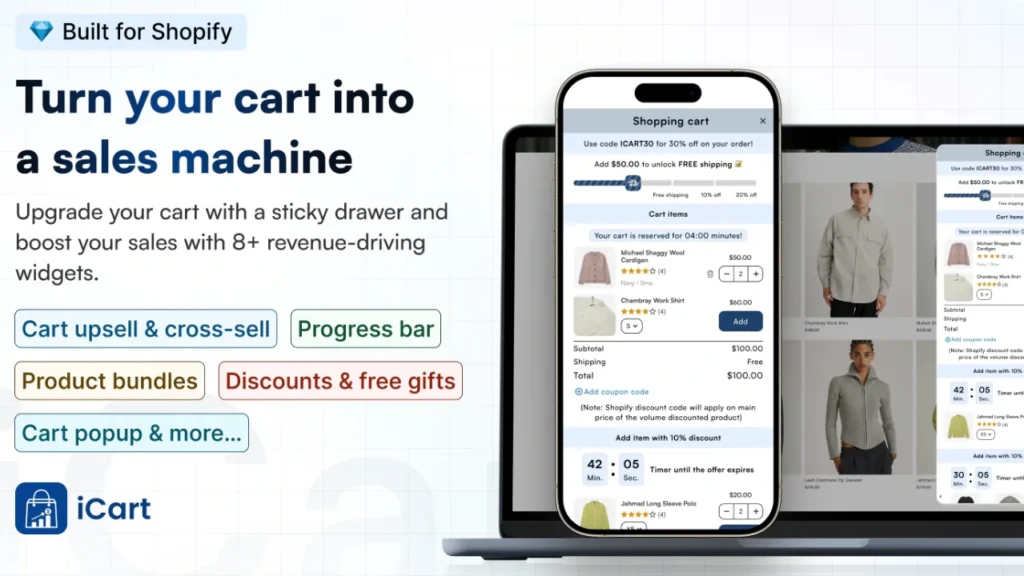
You can add in-cart upsells and cross-sells, show a free shipping progress bar, offer product bundles, and customize the cart layout with a no-code editor so it fits your theme style.
Why should you change your Shopify cart icon?
Your cart icon looks like a tiny detail, but it sits on every page, and it directly affects how quickly shoppers find the cart and move to checkout.
Here’s why changing it can be worth it:
Better visibility = fewer missed clicks
Some theme icons look too thin, too small, or blend into the header. A cleaner icon helps shoppers spot the cart instantly.
Match your brand style
If your store feels premium, playful, minimal, or bold, the default cart icon might not match. Updating it makes your header look more intentional.
Improve mobile usability
Mobile headers are complicated to see and click. A simpler, higher-contrast icon can be easier to tap and recognize.
Fit your header design changes
If you updated fonts, colors, or the header layout, the old cart icon may look out of place. A matching icon makes the header feel polished.
Stand out from “default Shopify” stores
Many new stores use the same theme defaults. A cart icon swap is a quick branding win without redesigning the whole site.
Tips while changing the Shopify cart icon
When you change your cart icon, your goal should be simple: make it easy to find, easy to understand, and consistent across devices.
Use these tips so the change improves the experience instead of creating new issues:
Use the right file type if you upload an icon
SVG usually looks the sharpest, but some themes handle PNG better. Either way, keep it lightweight so it doesn’t slow your header.
Keep it instantly recognizable
Stick to common cart or bag shapes. Avoid fancy icons that look like a bookmark, folder, or heart.
Use strong contrast
If your header is light, use a darker icon. If your header is dark, use a lighter icon. Contrast matters more than style.
Test it on mobile first
Open your store on your phone and check the icon size and tap area. If it feels hard to tap, increase spacing or size slightly.
Match the style of your other header icons
If your search and account icons are outline style, don’t use a filled cart icon (and vice versa). Keep the icon set consistent.
Make sure the cart count badge still looks right
After changing the icon, check if the item count bubble overlaps, shifts, or becomes unreadable.
Check on multiple browsers
Quickly test on Chrome + Safari (mobile) because icons can render slightly differently depending on format and CSS.
Conclusion
Changing your cart icon in Shopify is a small update, but it can make your store feel more polished and easier to use.
When shoppers can spot the cart faster, they move to checkout with less difficulty, especially on mobile, where every tap matters.
Before you publish the change, quickly test your header on desktop and mobile, check the cart count badge, and make sure the icon matches your theme style.
FAQs for Shopify Cart Icon
1. How do I change a cart icon on Shopify?
In most themes, you change the cart icon by editing the theme files: go to Online Store → Themes → Edit code, then replace the cart icon file in the snippets folder ( icon-cart.liquid / icon-cart-empty.liquid) with the new HTML-ready cart icon code you have downloaded.
2. How to remove the cart icon in Shopify?
The cleanest approach is to hide it in the header via theme code or a small CSS rule targeting the header cart button, because removing it outright can break navigation and confuse shoppers.
3. Can I change cart icons in all Shopify themes?
Yes, practically all themes let you change it, but the method varies: some use SVG files in Assets, others use Liquid snippets, and a few hardcode the SVG directly in the header. liquid.
4. Which format should I upload cart icons in Shopify?
Use SVG whenever possible because it stays clean at any size and is how modern Shopify themes handle icons.
5. From where can I download ready-made cart icons for my Shopify store?
Good, safe sources with downloadable SVGs include SVG Repo and Icons8.

![Shopify Ecommerce Automation: Tasks You Can Automate [Real Use Cases]](https://www.identixweb.com/wp-content/uploads/2026/02/19-02-Thu-Blog-Which-Shopify-Tasks-Can-You-Automate_-Top-Use-Cases-Explained.webp "Shopify Ecommerce Automation: Tasks You Can Automate [Real Use Cases]")

About the author
Vineet Nair
Vineet is an experienced content strategist with expertise in the ecommerce domain and a keen interest in Shopify. He aims to help Shopify merchants thrive in this competitive environment with technical solutions and thoughtfully structured content.