







Shopify product schema is structured data code that tells Google exactly what your product is, its name, price, reviews, and availability. When correctly implemented, it unlocks rich results in Google Search, improves your click-through rate, and signals to Google that your store is trustworthy and authoritative.
When a shopper searches for your product on Google, two stores can sit at the same ranking position. One shows star ratings, price, and stock status right on the results page. The other shows a plain blue link. Guess which one gets clicked.
Shopify product schema is structured data code added to your product pages that tells Google exactly what you're selling, with the price, availability, reviews, and brand. In this guide, you will learn what Shopify product schema is, why every merchant needs it, and exactly how to add it to your store with or without a developer.
What is Shopify Product Schema?
Schema markup (also called structured data) is a snippet of code typically written in JSON-LD format that you add to your store's pages. It doesn't change how your page looks to visitors. What it does is speak directly to search engines, giving them a structured, machine-readable summary of your content.
In short words, Shopify product schema is schema markup applied to your product pages. It communicates data points like:
- Product name, description, and category
- Price and currency
- Availability (in stock, out of stock, pre-order)
- Review ratings and review count
- SKU, brand, and GTIN/MPN (barcode identifiers)
- Product images
Google uses this data to generate rich snippets, the enhanced search listings with star ratings, price ranges, and availability status that stand out dramatically from plain blue links.
Why Your Shopify Store Needs Product Schema
You are invisible in rich results
The Google search results page isn't just ten blue links anymore. It includes shopping panels, knowledge cards, "People Also Ask" boxes, and AI-generated overviews. Stores with properly implemented Shopify product schema are the ones appearing in these enhanced placements. Stores without it are invisible there.
Your click-through rate is low
Research consistently shows that rich results those star ratings, prices, and product details under a search listing earn significantly higher click-through rates than standard text links. If you're not using Shopify schema product markup, you're sending traffic to competitors who are.
Appearing in Google's AI Overview
Google's AI-generated overview pulls structured, credible data from pages that demonstrate expertise, authoritativeness, and trustworthiness (E-E-A-T). Schema markup is one of the strongest signals you can send. It tells Google: this page is well-organised, machine-verifiable, and reliable. For merchants who want visibility in this AI layer, implementing schema is no longer optional.
Missed trust signals on your product pages
When shoppers see rich results with verified reviews and pricing in Google, they arrive at your store already primed to trust you. Schema helps convert search intent into store visits and store visits into sales.
Types of Schema Markup That Matter for Shopify Stores
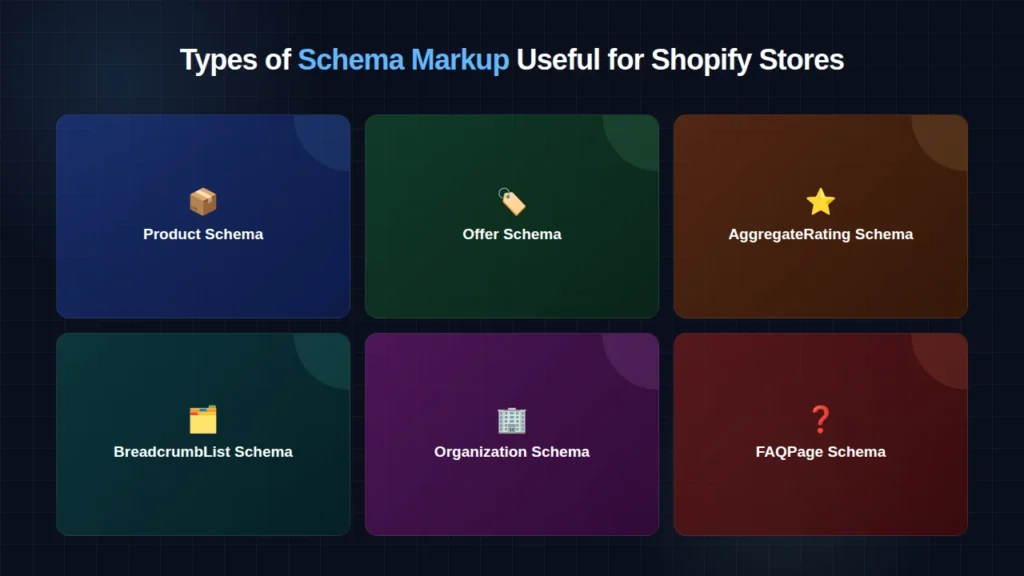
There's more than one type of schema, and knowing which ones to implement for your Shopify store will save you time and confusion.
1. Product Schema
It covers the essential product details name, description, image, SKU, brand, price, and availability. Every Shopify store selling physical or digital products should have this on every product page. This is your Shopify product schema baseline.
2. Offer Schema
Offer schema sits inside your product schema and specifically handles pricing and availability. It's what enables Google to display the price and stock status in rich results. If you've seen a Google result that shows "In stock - £49.99", that's offer schema doing the work.
3. AggregateRating Schema
This is what powers those coveted star ratings in Google Search. It communicates your product's overall rating score and the number of reviews. If your Shopify store has product reviews (via native Shopify reviews or apps like Judge.me, Loox, Yotpo, or Okendo), this schema type is crucial to expose that social proof in search results.
4. BreadcrumbList Schema
Breadcrumb schema helps Google understand your store's navigation structure and page hierarchy. It generates breadcrumb paths in search results (e.g., Home > Skincare > Serums) which improve click-through rates and help users orient themselves before they even arrive.
5. Organization Schema
This goes on your homepage and tells Google about your business like your brand name, logo, website, and social profiles. It contributes to your overall E-E-A-T signals and helps Google understand who is behind the store.
6. FAQPage Schema
If your product pages include FAQ sections (which is excellent SEO practice), FAQ schema can cause those questions to expand directly in Google's search results, taking up more search real estate and reducing competitor visibility.
How to Add Product Schema in Shopify
There are three main methods to add Shopify schema product markup. Choose the one that fits your comfort level.
Method 1: Check If Your Shopify Theme Already Has It
Many modern Shopify themes including Dawn, Refresh, Sense, and other OS 2.0 themes comes with basic product schema built in. Before doing anything else, check what's already there.
How to check:
- Open any product page on your live store.
- Right-click → "View Page Source."
- Press Ctrl+F (or Cmd+F on Mac) and search for "@type": "Product".
- If you find it, your theme has base product schema.
Now test whether it's valid and complete using Google's Rich Results Test. Many built-in themes have schema, but it's incomplete missing review data, incorrect price formatting, or outdated markup.
Method 2: Manually Edit Your Shopify Theme
This method gives you full control and requires no apps. Here's how to add or improve Shopify product schema directly in your theme code.
Step 1: Back up your theme first
In your Shopify admin, go to Online Store → Themes → click the "..." button next to your live theme → select "Duplicate." This creates a backup. Always do this before editing code.
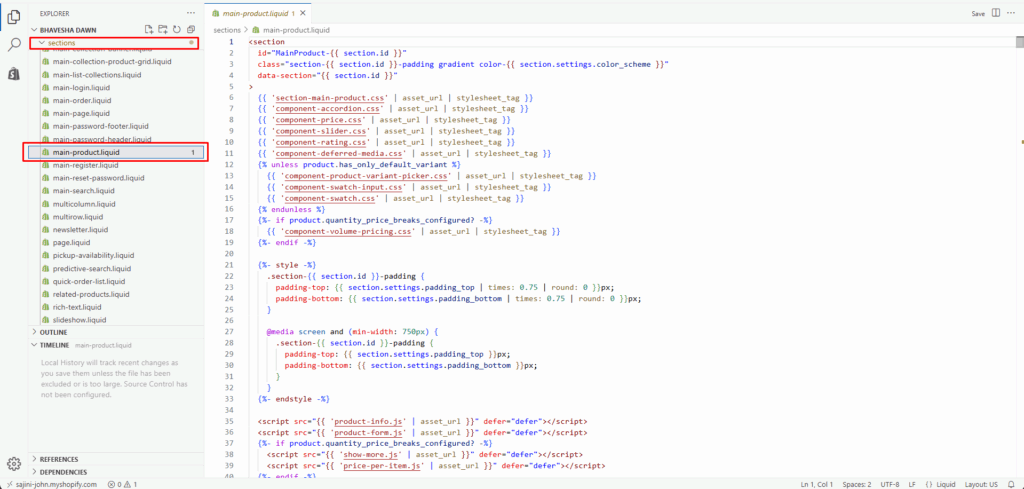
Step 2: Access the product template file
Go to Online Store → Themes → click "Edit code." In the file browser, look for:
- sections/main-product.liquid (for OS 2.0 themes like Dawn)
- templates/product.liquid (for older themes)
Step 3: Add your JSON-LD schema block
Paste the following structured data block before the closing </section> tag (or at the top of the file if no schema exists). This is a complete, well-structured example:
<script type="application/ld+json">
{
  "@context": "https://schema.org/",
  "@type": "Product",
  "name": "{{ product.title | escape }}",
  "image": [
    "{{ product.featured_image | img_url: 'master' }}"
  ],
  "description": "{{ product.description | strip_html | escape }}",
  "sku": "{{ product.selected_or_first_available_variant.sku }}",
  "brand": {
    "@type": "Brand",
    "name": "{{ shop.name | escape }}"
  },
  "offers": {
    "@type": "Offer",
    "url": "{{ canonical_url }}",
    "priceCurrency": "{{ cart.currency.iso_code }}",
    "price": "{{ product.selected_or_first_available_variant.price | divided_by: 100.00 }}",
    "availability": "{% if product.available %}https://schema.org/InStock{% else %}https://schema.org/OutOfStock{% endif %}",
    "itemCondition": "https://schema.org/NewCondition"
  }
  {% if product.metafields.reviews.rating %}
  ,"aggregateRating": {
    "@type": "AggregateRating",
    "ratingValue": "{{ product.metafields.reviews.rating.value.rating }}",
    "reviewCount": "{{ product.metafields.reviews.rating_count }}"
  }
  {% endif %}
}
</script>
Step 4: Save and preview
Save the file, visit a product page, and proceed to validation in the next section.
Method 3: Use a Shopify Schema App
If editing code feels daunting, several Shopify apps handle Shopify product schema automatically including dynamic updates when you change product prices or stock. These apps typically handle schema injection, keep it updated with product changes, and include a dashboard to monitor rich result eligibility. For merchants managing large catalogues, an app is often the most sustainable choice.
How to Test and Validate Your Shopify Schema
Adding schema is only half the job. Validating it ensures Google can actually read and use it. Here are the tools to use:
Google Rich Results Test
Visit search.google.com/test/rich-results and paste your product page URL. Google will parse your page's schema and show you exactly which rich result types are detected. It will also flag errors and warnings for example, a missing reviewCount property or an incorrectly formatted price.
What you want to see: "Product rich result detected" with a green checkmark and no critical errors.
Google Search Console
If your site is connected to Google Search Console, navigate to the "Enhancements" section in the left sidebar. You will find a dedicated "Products" report showing:
- Pages with valid product schema
- Pages with schema errors or warnings
- The number of pages eligible for rich results
Schema.org Validator
For a deeper technical check, use validator.schema.org. This is Schema.org's own official validation tool. It shows you every property detected and highlights anything that doesn't conform to the schema.org specification.
Frequently Asked Questions
1. Does Shopify have product schema?
Shopify doesn't add product schema by default, but many premium and free themes particularly those built on Shopify's OS 2.0 framework include basic schema markup. The built-in schema is often incomplete (missing reviews or breadcrumbs), so it's worth auditing and enhancing it regardless of which theme you use.
2. How long does it take for schema to show in Google Search?
After you implement and validate your Shopify product schema, it typically takes 1-4 weeks for Google to crawl, process, and begin displaying rich results. You can speed this up by submitting updated sitemaps in Google Search Console and using the URL Inspection tool to request re-indexing of your key product pages.
3. Can I add schema to collection pages, not just product pages?
Yes. For collection pages, you'd typically implement ItemList schema; a structured list of the products on that page. This can help collection pages appear in rich results for category-level searches. It's less commonly implemented but valuable for stores with strong collection-level SEO.
4. Will schema markup slow down my Shopify store?
No. JSON-LD schema is a small snippet of text added to your page source. It has no impact on page speed or Core Web Vitals. It doesn't load any external resources.





About the author
Sajini Annie John
Meet Sajini, a seasoned technical content writer with a passion for e-commerce and expertise in Shopify. She is committed to helping online businesses to thrive through the power of well-crafted content.