







Key Highlights: You can add Instagram feed to Shopify in two ways: install a Shopify app, connect your Instagram account, and place the feed through the theme editor, or copy embed code from a public Instagram post and paste it into a page or section manually. The app method works best for most stores because it auto-updates, looks cleaner, and can make posts clickable or shoppable.
Adding your Instagram feed to your Shopify website is one of the simplest ways to boost sales.
A lot of store owners miss this opportunity. It builds trust, shows real product visuals, and helps visitors see how your products look in real life. When the feed is placed well, it can also guide people toward product pages and give them one more reason to explore your store.
I’ve helped Shopify stores add Instagram feeds in a few different ways.
In this guide, I’ll show two methods and the best practices to place your Instagram feed in a way that gets clicks.
Two methods to add Instagram feed to Shopify
| Method | Best for | What to expect |
| With a Shopify app | Stores that want a live, polished, and easy-to-manage feed | Auto-updating feed, better design control, and more options to make the feed clickable or shoppable |
| Without an app | Stores that only want to show a few Instagram posts manually | Simple manual embed option, but less control, fewer features, and no real live feed experience |
Method 1: Add Instagram feed to Shopify homepage with an app
This is the best option for most stores. If you want automatic updates of the Instagram feed on website pages, this is the method I would recommend first.
The advantages of this method:
Gives you more control: You can usually choose how the feed looks, where it appears, and how shoppers interact with it.
It saves time: Once the app is connected, your Instagram content can sync automatically instead of forcing you to add every post by hand.
The only con here is that you have to pay a monthly fee.
From what I’ve seen, this method works especially well for fashion, beauty, jewelry, home decor, and other visual brands. If your product sells better when people see it in real-life photos, an app-based feed usually gives you the strongest result.
Method 2: Embed Instagram feed to Shopify
If you want to embed an Instagram feed on Shopify site without installing an app, you can manually add public Instagram content to your store.
Use this method if:
You only want to show selected Insta posts. It is a simple route for store owners who want something quick and do not need a full feed layout.
Let’s see a step-by-step guide on each method.
How to Add Instagram Feed to Shopify? (With an App)
Step 1: Choose an Instagram feed app
Start by picking an app from the Shopify App Store. Focus on the features that matter for a new store.
Look for:
- Easy setup
- Mobile-friendly layout
- Feed customization
- Product linking or shoppable posts
Here are a few apps that I have worked with.
- Instafeed by Mintt Studio
- GSC Instagram Feed
- Socialwidget - Instagram Feed
Just go to the App Store and search for ‘Instagram feed’ and look for apps that suit your goals. Choose the best one and install it.
Step 2: Connect your Instagram account
The app will ask you to connect your Instagram account or choose a content source.
Depending on the app, you may be able to pull content from:
- Your own Instagram posts
- Hashtags
- Mentions
- Tagged content
In my experience, your own posts are the best place to start.
Step 3: Add the Instagram feed to your Shopify homepage
Go to Online store > Themes > Edit theme
Then:
- Add the app block and place it where you want it on the homepage
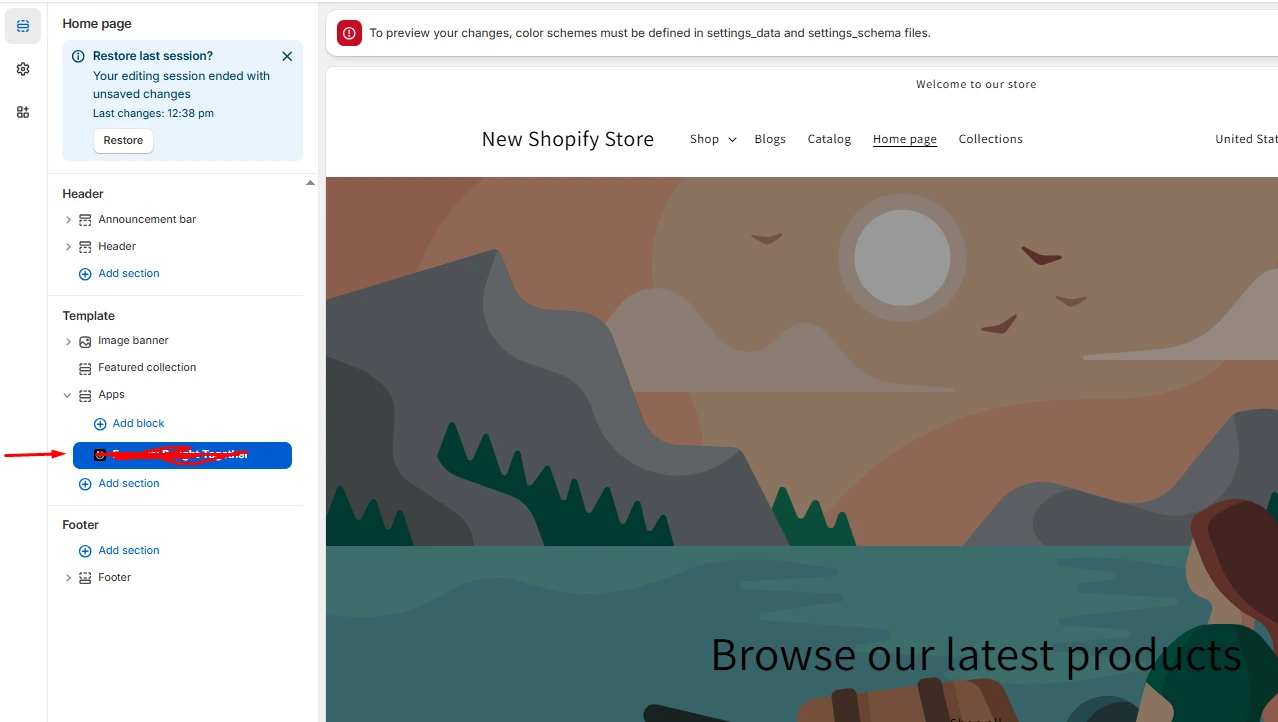
- Save the changes and preview the page
This step will be easy once the app is connected.
Step 5: Customize the layout
Every Instagram feed app will have a layout feature. Keep it simple and clean. You do not need too many settings.
Focus on:
- Grid or slider
- Number of posts
- Spacing between the posts
- Mobile view
- Heading text
- Where clicks lead the shoppers.
Here’s a live example of the store Purple Hippie (purplehippie.in). They have kept it in the footer of their website.

Step 6: Test the feed on desktop and mobile
Before you publish, test it on multiple devices. I always check for:
- Loading speed
- Spacing between posts
- Image alignment
- Whether clicks work
- Whether the feed takes attention away from your main CTA
How to add Instagram feed to Shopify website (Embedding method)
Step 1: Open the Instagram content
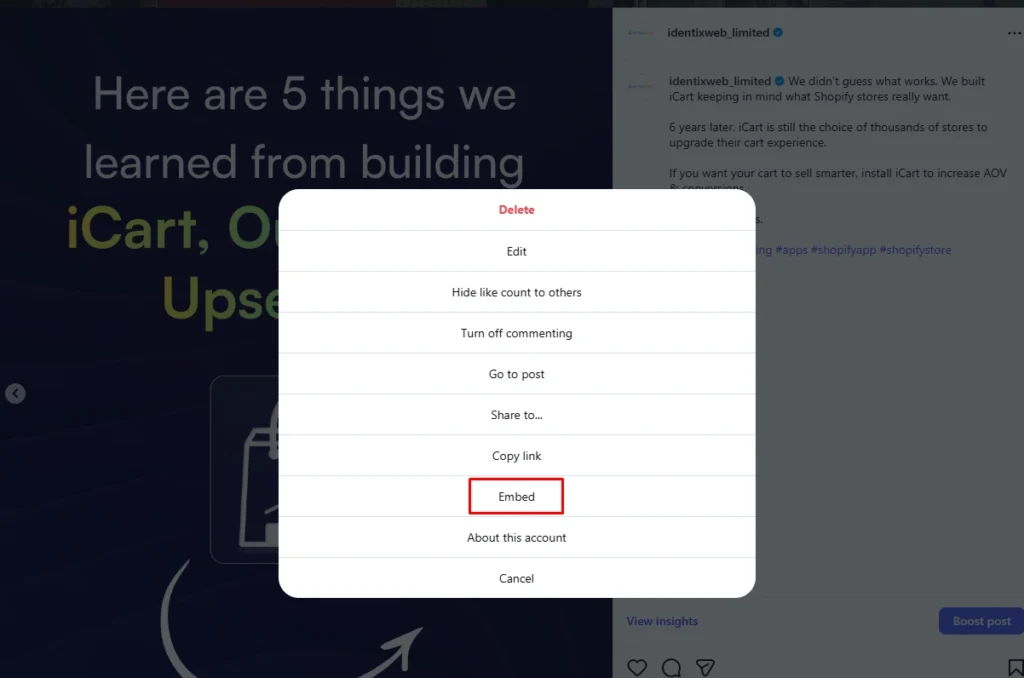
Open the public Instagram post or profile you want to embed. Click the three-dot menu on the post and then click on the option Embed.
Step 2: Paste the embed code in the custom liquid
Go to Online Store → Themes → Edit theme. Open the homepage template and add a Custom Liquid section.
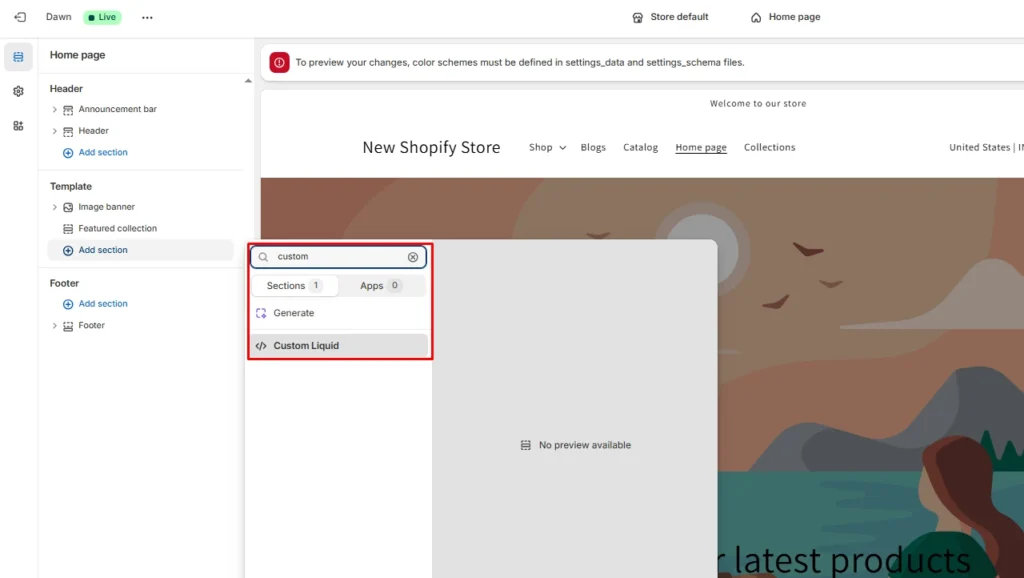
Now paste the Instagram embed code in this section, and you will see a preview of the post.
You need coding experience to properly set up on your page. That’s why I always recommend the app method.
Where should I add Instagram feed on Shopify website?
- Homepage under the featured collection
- Product page below the product gallery or reviews
- A dedicated Shop Our Instagram page
- Collection page footer
This is where I found success with Insta feed. But for you, place the feed where shoppers already pay attention, like the featured products on the homepage or on product pages for extra social proof.
Tips when adding an Instagram feed to your website
- Avoid hiding it in the footer. Show it after your featured or bestsellers section.
- Show fewer posts at a time. 4 is a good number.
- Make the feed clickable, ideally to product pages. This will boost your sales.
- Add a clear heading like Shop Our Instagram or Seen on Instagram.
- Keep the design consistent with your store, and always check that the feed looks clean and loads well on mobile.
To wrap it up
Adding an Instagram feed to Shopify is as simple as it gets. It adds social proof to your website and boosts sales. Yet I have seen very few stores do it.
For new stores, I recommend the app method. It is easier to manage, looks better on the storefront, and gives you more control over how the feed supports clicks and product discovery.
Start with one clean Instagram feed, place it where shoppers already pay attention, and make sure it adds value to the page.
FAQs
1. How to add Instagram feed to Shopify?
The easiest way is to install an Instagram feed app from the Shopify App Store, connect your Instagram account, and place the feed in your theme using an app block or app embed in the theme editor.
2. Can you embed an Instagram feed on a Shopify site?
Yes. Instagram supports embedding public content.
3. How to embed Instagram feed to Shopify website?
Copy the Instagram embed code from a public post. Go to Online Store > Themes > Edit theme and add a custom liquid section. Copy the embedded code in this section and save it.
4. Which are the best Instagram feed apps for a Shopify store?
Good current options that I have used include Instafeed by Mintt, GSC Instagram Feed, and Socialwidget.
5. Which places can I add an Insta feed on a Shopify storefront?
The best spots are usually the homepage (header or featured section), product pages, or a dedicated “Shop Our Instagram” page.

![How to Add Apple Pay to Shopify? [New & Easy Tutorial]](https://www.identixweb.com/wp-content/uploads/2026/03/20-03-Fri-Blog-How-to-Enable-Apple-Pay-in-Your-Shopify-Store_-.webp "How to Add Apple Pay to Shopify? [New & Easy Tutorial]")



About the author
Vineet Nair
Vineet is an experienced content strategist with expertise in the ecommerce domain and a keen interest in Shopify. He aims to help Shopify merchants thrive in this competitive environment with technical solutions and thoughtfully structured content.