

The Customer notifications feature in Loyalty Rewards allows you to automatically send email notifications to your customers when they earn or redeem reward points. You can configure the sender email address and name for these notifications, but you must verify your email address before notifications can be sent. This feature keeps your customers informed about their points activity, enhancing their experience with your loyalty program. To set up customer notifications, log in to your Shopify Admin, go to the Loyalty Rewards app, and navigate to Settings.
Enter your sender email and name, then click to verify your email. You will see various verification statuses indicating whether your email is verified, and you must complete the verification within 24 hours. Note that currently, you cannot customize the notification email templates, but this feature is planned for future updates.
You can configure the sender email address and sender name used for these notifications. Before notifications can be sent from your email address, it must be verified.
This article explains how to set up customer notifications, configure sender details, and understand the different email verification statuses.
About customer notifications
When customers interact with your loyalty program, the app automatically sends email notifications to keep them informed about their points activity.
Customers receive notifications when they:
- Earn reward points.
- Redeem reward points.
These notifications are sent using the sender details configured in the Settings ➞ Customer notifications.
What you can configure
In the Customer notifications settings, you can configure the following details used for sending loyalty notification emails.
How to verify your email address?
If you have not verified your email address yet, follow these steps to get started.
- Log in to your Shopify Admin.
- Go to Apps and open the Loyalty Rewards app.
- In the app menu, click on Settings.
- On the Settings page, find the Customer notifications section.
- Enter your Sender email and click the verify link to send a verification email.
- Enter your Sender name — this is the name your customers will see in their inbox.
- Click Save to store your settings.
Email verification statuses
After configuring your sender email address, you will see a status next to it. These statuses help you understand the current verification state of your email address and whether customer notifications can be sent successfully.
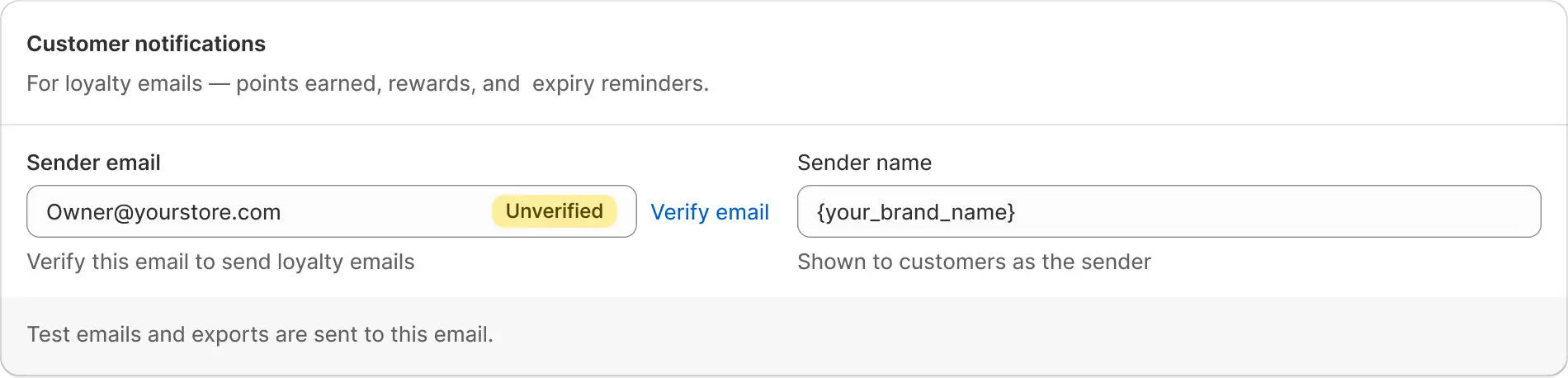
❌ Unverified Status
Your email address has not been verified yet. Click the Verify email link shown next to the status to send a verification email to your inbox.
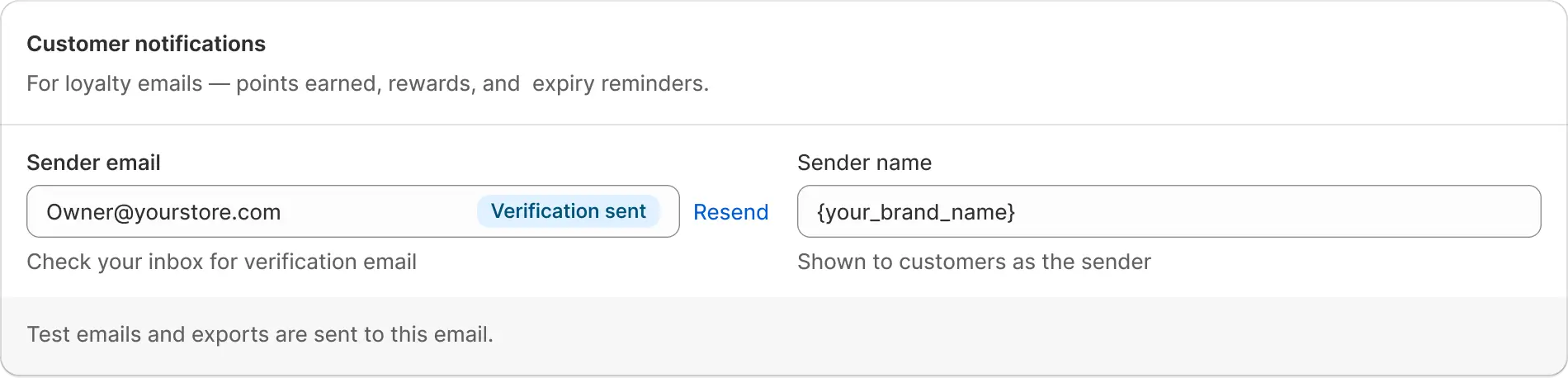
📨 Verification Sent Status
A verification email has been sent to your inbox.
- Open the email from AWS (Amazon Web Services).
- Click the verification link.
- Complete the verification within 24 hours.
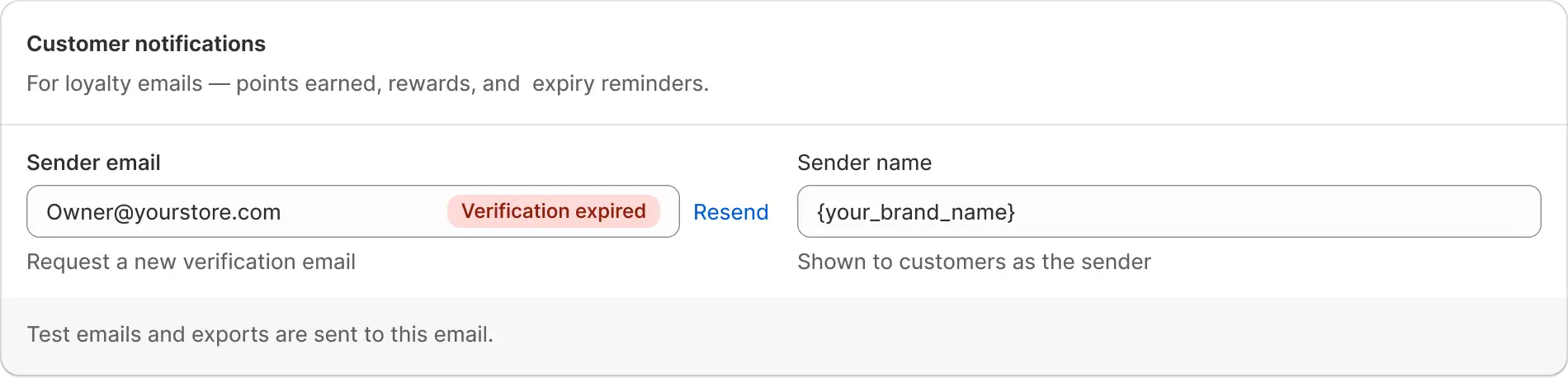
⏰ Verification Expired Status
The verification link expired because it was not used within 24 hours. Click the Resend link shown next to the status to request a new verification email.
Important: You must verify your email within 24 hours of receiving the verification link. If the link expires, you will need to request a new one using the Resend link.
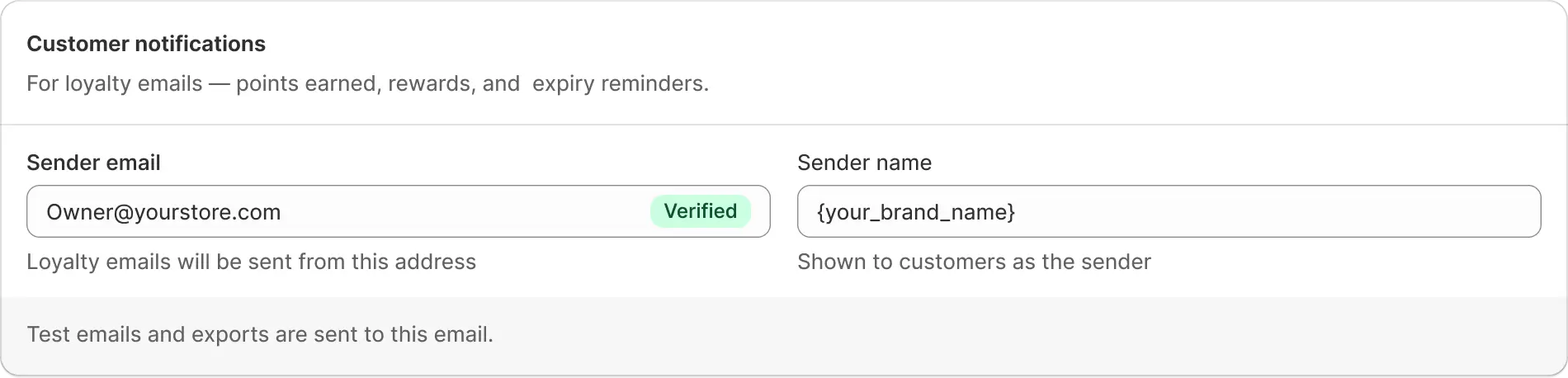
✅ Verified Status
Your email address has been verified successfully. The app will use this address to send customer notifications when customers earn or redeem reward points.
About the verification email
The verification email is sent through Amazon Web Services (AWS). This is a secure and standard email delivery method.
Once your email is verified, your customers will automatically receive email notifications for loyalty point activities. Currently, these emails use a default template from our side. You cannot customise them at this time.


