

The Embed Loyalty feature in iWeb Loyalty Rewards allows you to display loyalty point information on key pages of your store, enhancing customer engagement with your loyalty program. By showing loyalty points on the Product Page, Cart Page, Customer Account Page, Thank You Page, and Order Status Page, you can encourage repeat purchases and help customers understand the rewards they can earn while shopping. To set up the Embed Loyalty feature, ensure the iWeb Loyalty Rewards app is installed, your loyalty program is enabled, and you have access to customize your theme.
You will need to add the Loyalty App Block to the desired pages in your Shopify Admin. After saving your changes, verify that the loyalty information displays correctly on your storefront. Remember to check both logged-in and guest views to ensure everything appears as intended, and consider placing the block near buying decision points for maximum visibility.
By displaying loyalty points on pages such as the Product Page, Cart Page, Customer Account Page, Thank You Page, and Order Status Page, you can encourage customers to engage with your loyalty program and increase repeat purchases.
Once configured, logged-in customers can view their earned or potential reward points throughout their shopping journey. Guests can also see the estimated points they can earn, giving them a clear understanding of the benefits of joining your loyalty program.
This article explains the prerequisites, supported pages, setup process, and recommended app block placement for the Embed Loyalty feature.
Prerequisites
Before setting up Embed Loyalty, make sure the following requirements are met.
How this feature works
The Embed Loyalty feature displays loyalty point information directly on your storefront, allowing customers to see the rewards they have earned or can earn while shopping.
The information displayed varies depending on whether the customer is logged in or browsing as a guest.
👤 Logged-in customers
When a customer is logged in to their account, the loyalty widget displays personalized reward information, including:
- The number of loyalty points they can earn from their current purchase.
- The loyalty points they have already earned, where applicable.
This helps customers track their rewards throughout their shopping journey and encourages continued engagement with your loyalty program.
🛒 Guest customers
Customers who are not logged in can still see the estimated loyalty points they can earn by buying the product.
Supported storefront pages
The Embed Loyalty feature can display loyalty information across the following storefront pages. Simply add the Loyalty App Block to the desired page template to display loyalty points at that location.
Setup instructions
Follow these steps to display loyalty information across your storefront.
- Log in to your Shopify Admin.
- Go to Embed loyalty menu under app.
- Click Setup button where you want to add app block.
- You’ll be redirected on the corresponding page for adding app block
- Click Add Block and select the iWeb Loyalty Rewards app block.
- Place the app block in your preferred location on the page.
- Click Save to apply the changes.
✅ Verify the Setup
After saving your theme changes:
- Visit your storefront.
- Open the page where you added the Loyalty App Block.
- Confirm that loyalty information is displayed correctly.
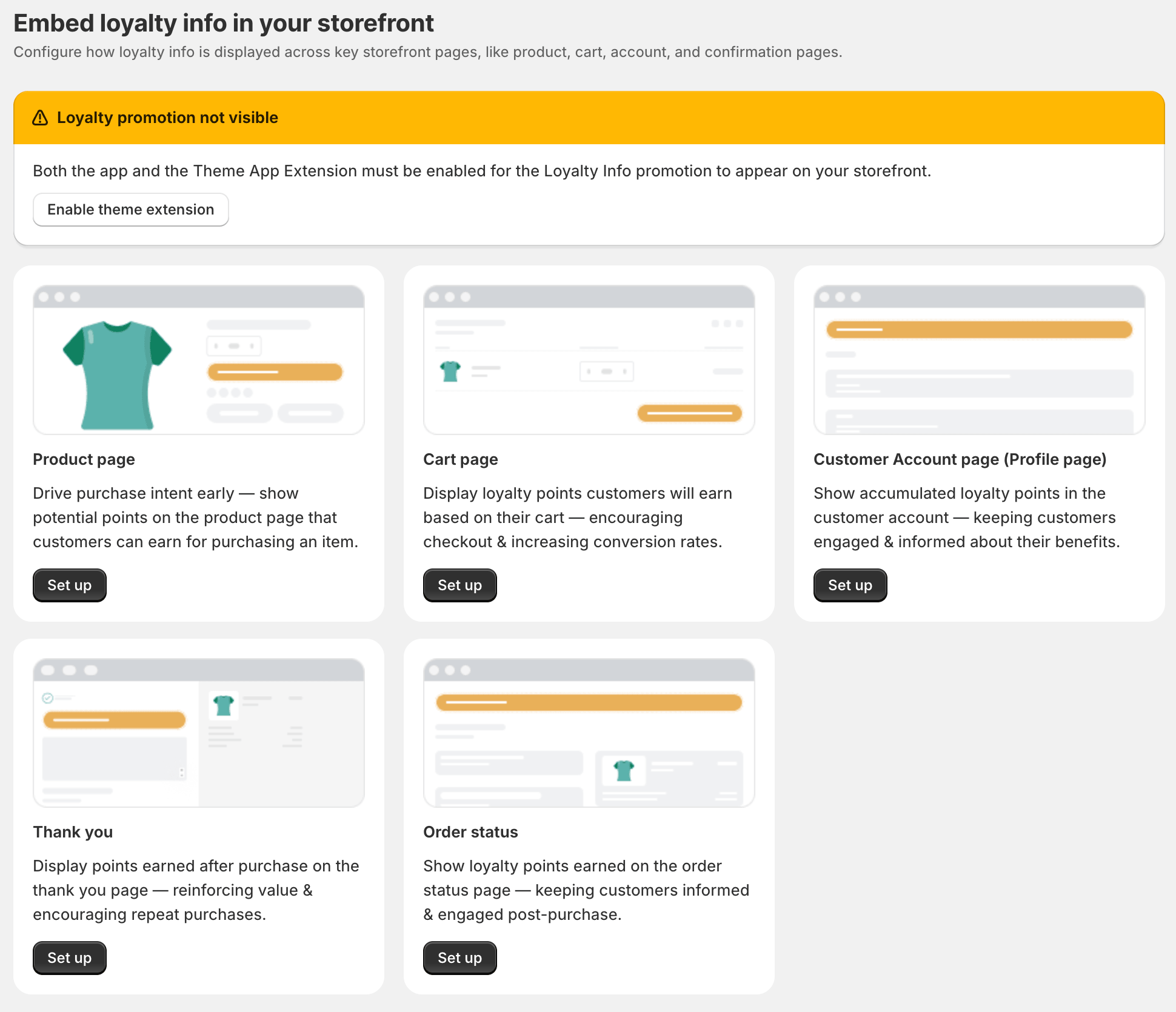
Recommended block placement
Although you can place the Loyalty App Block anywhere supported by your theme, the following locations provide the best customer experience.
Product page
Below the Price
Customers see the reward right after checking the price, which builds extra motivation to buy.
Above Add to Cart
Placing it just before the button makes the reward the last thing a customer sees before deciding.
Cart page
Near the Subtotal
Showing points next to the subtotal helps customers connect their spending with their rewards.
Above Checkout Button
This reminds customers of their reward right before they commit to buying.
Customer Account page
Account Summary Section
Placing the block within the account summary gives customers a quick, central view of their total points.
Thank you page
Display loyalty points near the order summary to reinforce the rewards earned from the completed purchase.
Order Status Page
Place the Loyalty App Block near the order details so customers can continue tracking their rewards after placing an order.
Tips & Best Practices
- Add the block to every supported page — This keeps the loyalty program visible at each stage of the shopping journey, not just at checkout.
- Check both logged-in and guest views — Test how the block looks for both types of visitors so nothing looks broken.
- Keep placement close to buying decisions — Points shown near the price or checkout button tend to get noticed the most.
- Re-check after theme updates — Theme changes can sometimes remove or move App Blocks, so verify your setup after any theme edit.


