





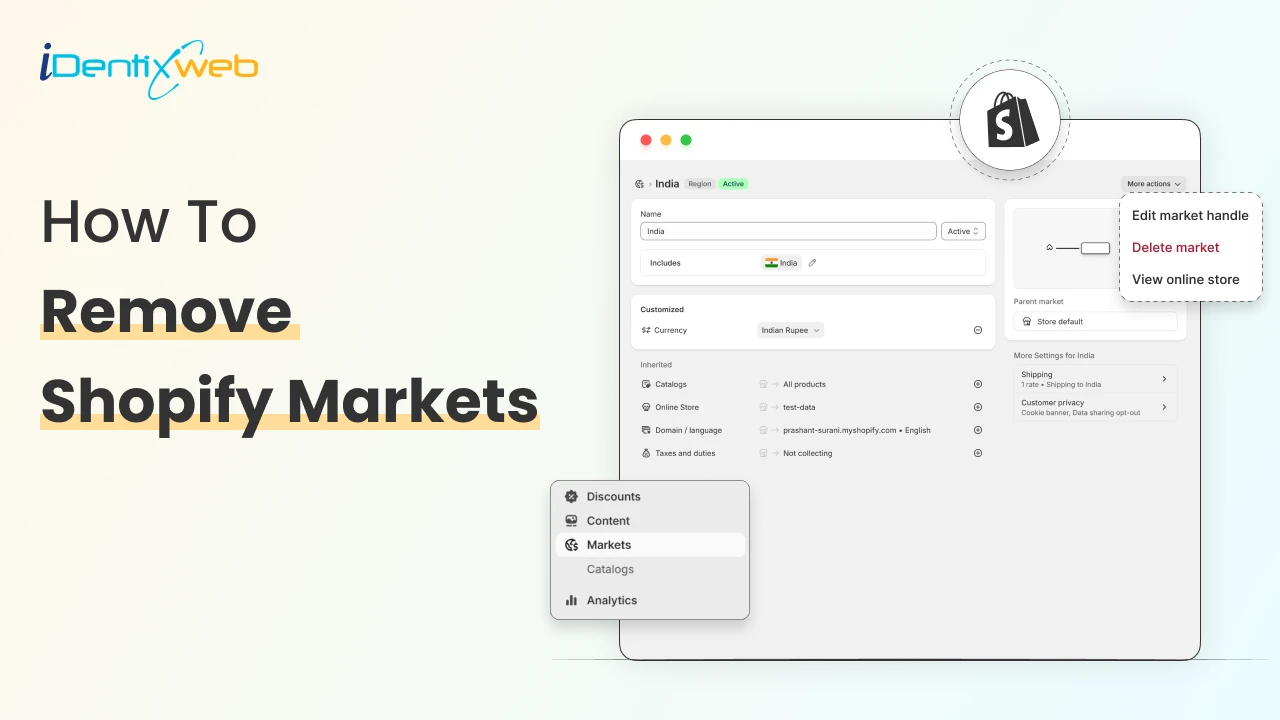
Managing different regions and currencies is essential when selling internationally on Shopify. Shopify Markets makes it easy to customize your store experience for each location, but there may be times when you need to remove a market you no longer serve, or change which market is set as your primary.
Whether you're simplifying your setup or adjusting your global strategy, this guide will walk you step-by-step through how to remove a Shopify market and change your primary market.
What is Shopify Markets and how does it work?
Shopify Markets is a built-in feature that helps merchants manage international selling from a single Shopify store. Instead of creating multiple stores for different countries, it centralizes everything in one place, allowing you to customize pricing, currencies, languages, domains, and tax settings for each region.
It works by grouping countries or regions into markets, where you can tailor the shopping experience to local customers.
How to remove markets from your Shopify store
Shopify Markets allows you to manage different regions and currencies for your store. If you need to remove a market or update which market is primary, follow the steps below.
Step 1: Login to your Shopify account.using your credentials.
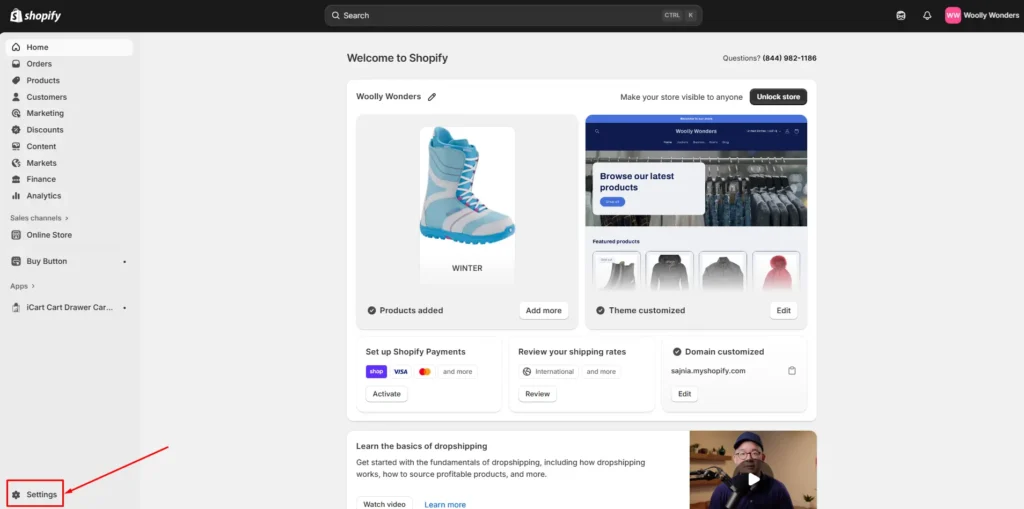
Step 2: Go to settings seen on the left corner.
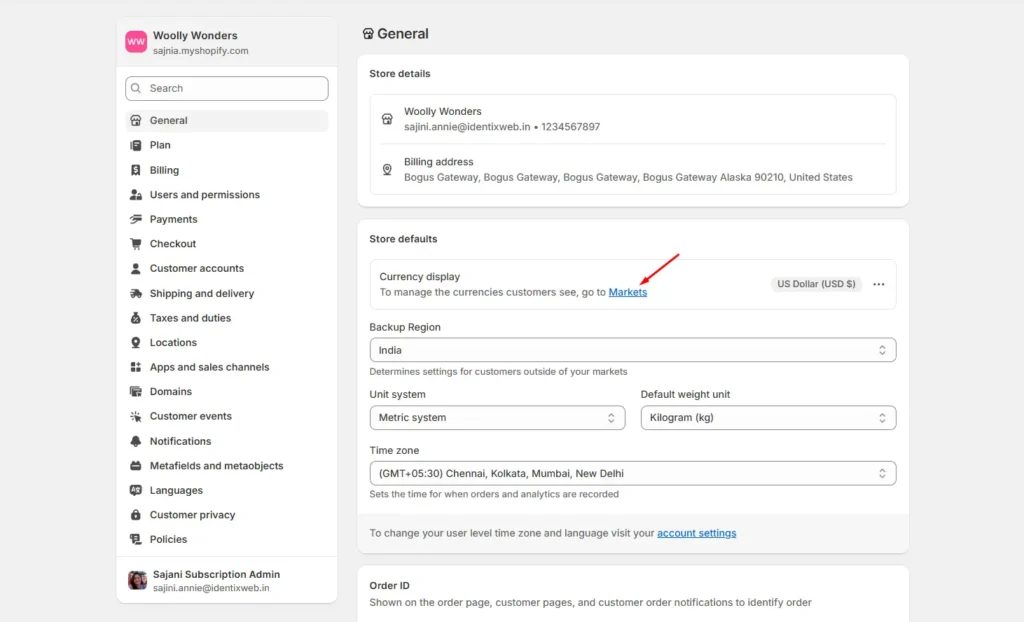
Step 3: A popup will appear and you have to click on markets.
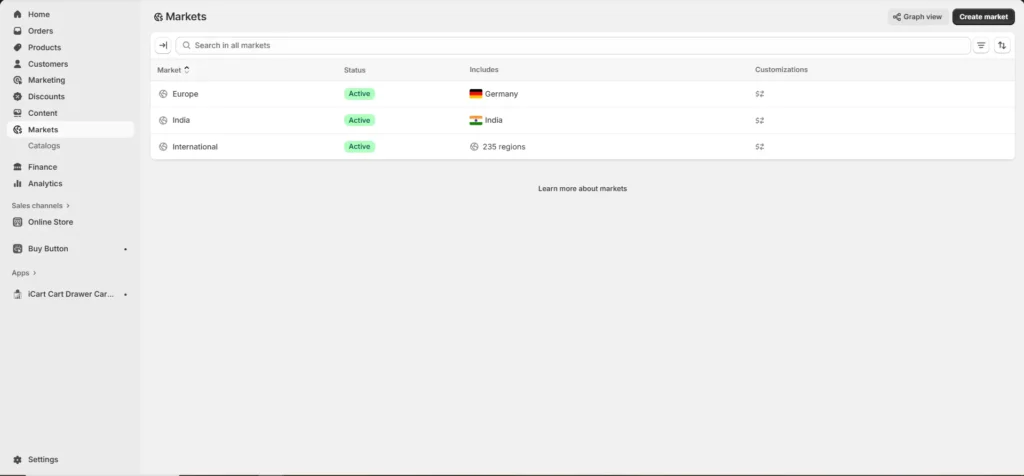
Step 4: Now, you will see the list of markets that you have added. Click on the specific market that you want to delete or remove.
Step 5: Click on the delete market option to delete the market from your Shopify store.

How to change primary market in your Shopify store
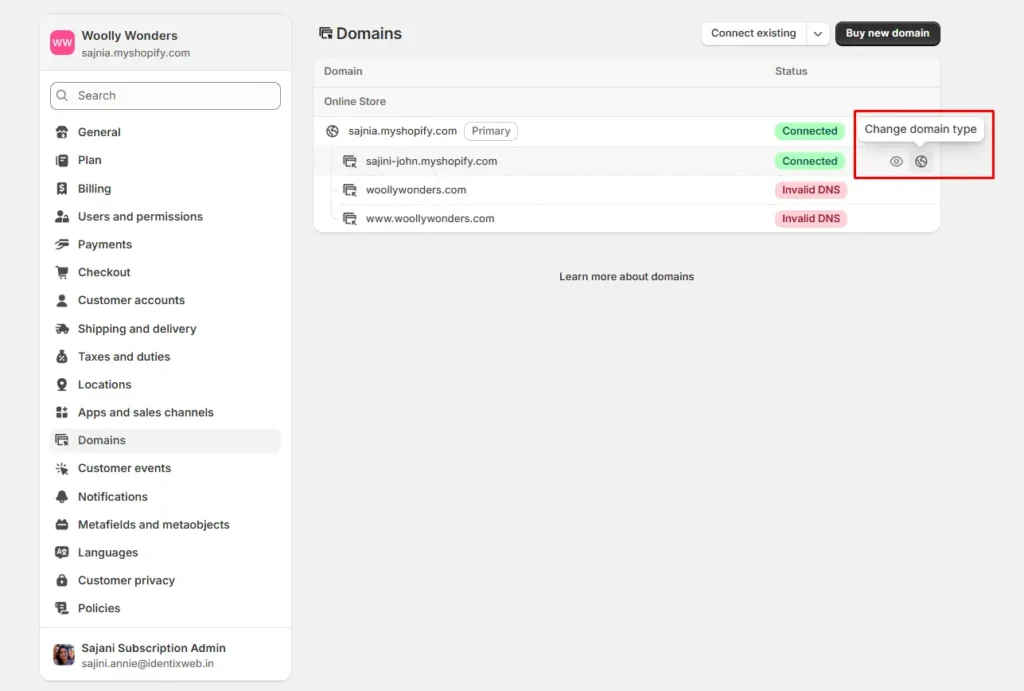
To switch your primary domain, first add your custom domain and verify that its status shows as “Connected”. Then, follow these basic steps:
1. Go to Settings > Domains.
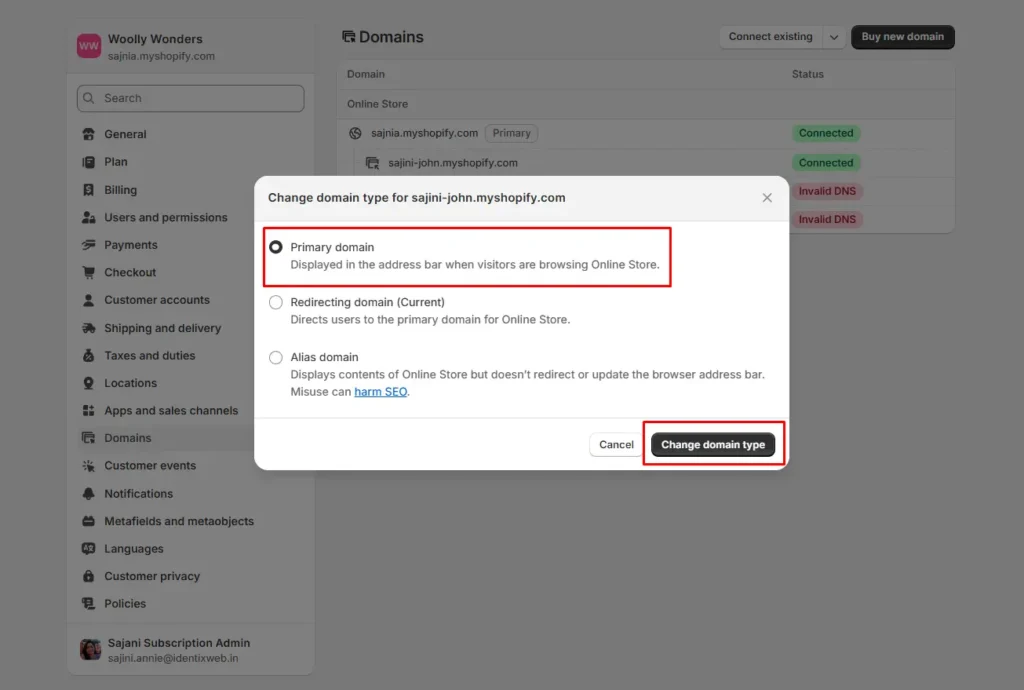
2. Click the one you want as your primary and select Change domain type.
3. Set it as the Primary domain type and save it by selecting Change domain type.
Frequently Asked Questions
1. What is Shopify Markets?
Shopify Markets was built to simplify global selling. It gives merchants one centralized hub to manage all international operations from a single Shopify store. With Shopify Markets, you can create and control multiple regions, each with customized pricing, languages, domains, duties, and taxes; all tailored to local buyers.
2. What’s the difference between Shopify Markets and Shopify Markets Pro?
Shopify Markets Pro includes additional features like advanced duties/taxes, fraud protection, global fulfillment, and improved cross-border compliance.
3. How much does Shopify Markets cost?
It doesn’t have a separate monthly fee; it’s included in your existing basic Shopify plan (Basic gets 3 markets, Grow gets 3, Advanced gets 3, Plus gets 50).
4. How to activate markets on my Shopify store?
Log in to your Shopify store > go to settings > click on select market and select the market you want to activate, and finally click on done.


![Best ChatGPT Prompts for Shopify You Can Copy-paste [+Tips to Write Prompts]](https://www.identixweb.com/wp-content/uploads/2026/03/13-03-Fri-Blog-AI-Prompts-for-Shopify-That-Grow-Your-Store-1.webp "Best ChatGPT Prompts for Shopify You Can Copy-paste [+Tips to Write Prompts]")

About the author
Sajini Annie John
Meet Sajini, a seasoned technical content writer with a passion for e-commerce and expertise in Shopify. She is committed to helping online businesses to thrive through the power of well-crafted content.