







To make products view only on Shopify and disable the Add-to-Cart button, you have three main options. Use the Shopify Theme Editor, edit your theme's Liquid or use a third-party Shopify app that enables Shopify catalog mode or browse-only functionality store-wide.
By default, Shopify is built for selling but not every store needs customers to buy instantly. Whether you're showcasing a wholesale catalog, launching products soon, or offering custom orders, you may want visitors to browse without seeing the “Add to Cart” button.
This guide walks you through every method to make products view only on Shopify - from zero-code theme editor tricks to Liquid code customizations. You'll know exactly which method fits your store by the time you finish reading.
Why Would You Want to Make Products View Only on Shopify?
Shopify is built to sell. Every default template, every button placement, every checkout flow - it's all optimized for conversions. But not every merchant wants that for every product, every visitor, every time.
Wholesale / B2B Catalog
Show your product range to retail buyers without letting retail customers place direct orders.
Coming Soon Collections
Build excitement and let visitors browse upcoming products before your official launch date.
Custom / Made-to-Order
For bespoke products, you need customers to contact you first not add to cart blindly.
Sold Out / Archived Items
Keep sold-out products visible for brand history or SEO without misleading buyers.
Login-Gated Purchasing
Let guests browse freely but require account login or approval before buying.
The common thread? You want your store to function as a Shopify browse only store or at least partially, for certain products. Let's get into how to do that.
How to make products view only on shopify
Method 1 - Theme Editor: Create a "Not-For-Sale" Product Template
This is the most recommended approach for most Shopify merchants, especially those without coding experience.
- In your Shopify admin, navigate to Online Store > Themes. Find your active theme and click Customize.
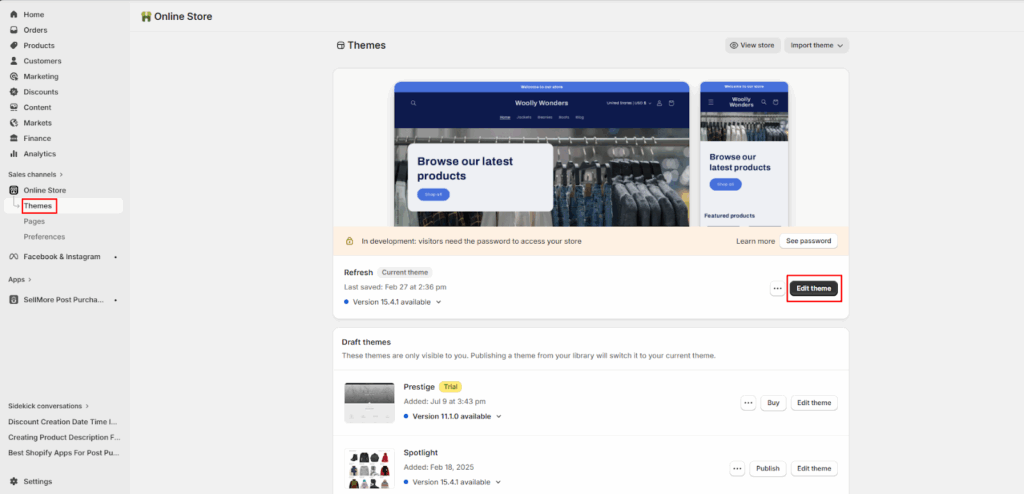
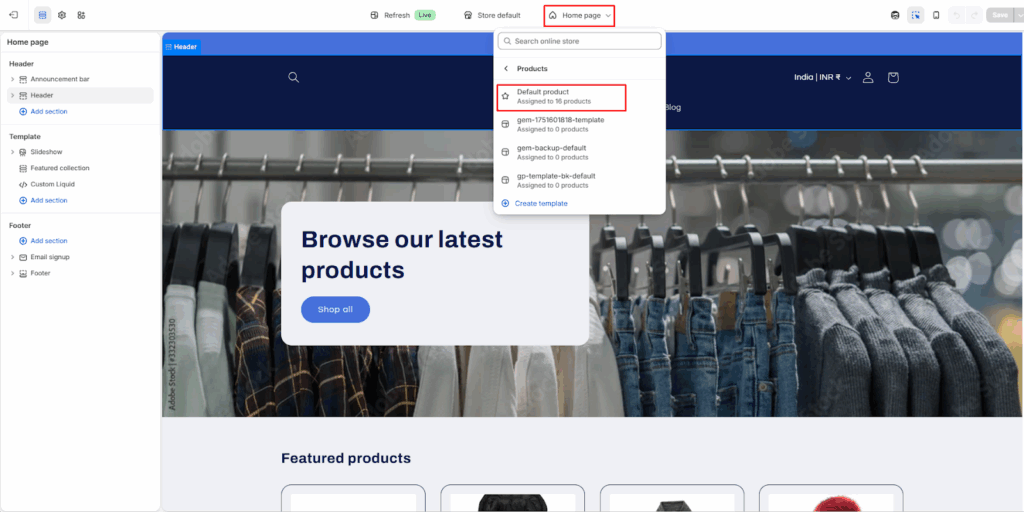
- Click the Home page dropdown at the top of the editor, then navigate to Products > Default product.
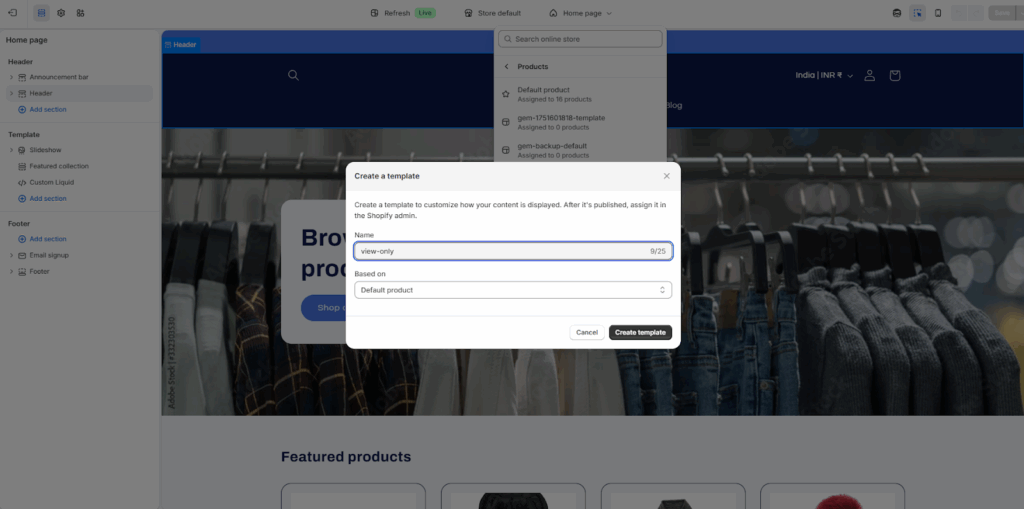
- Click the + Create template button. Name it something clear like "not-for-sale" or "view-only". Click Create template.
- In the Template > Product information section, hover over the Buy buttons block and click the eye icon to hide it.
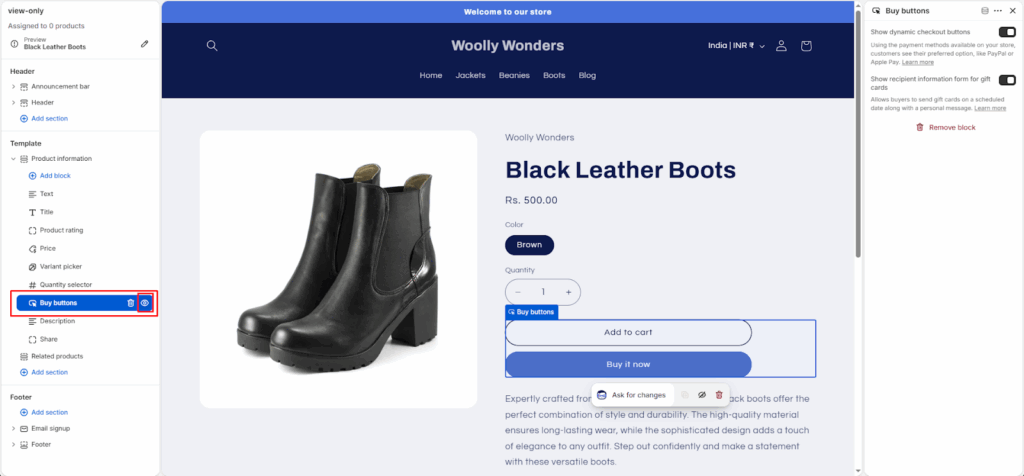
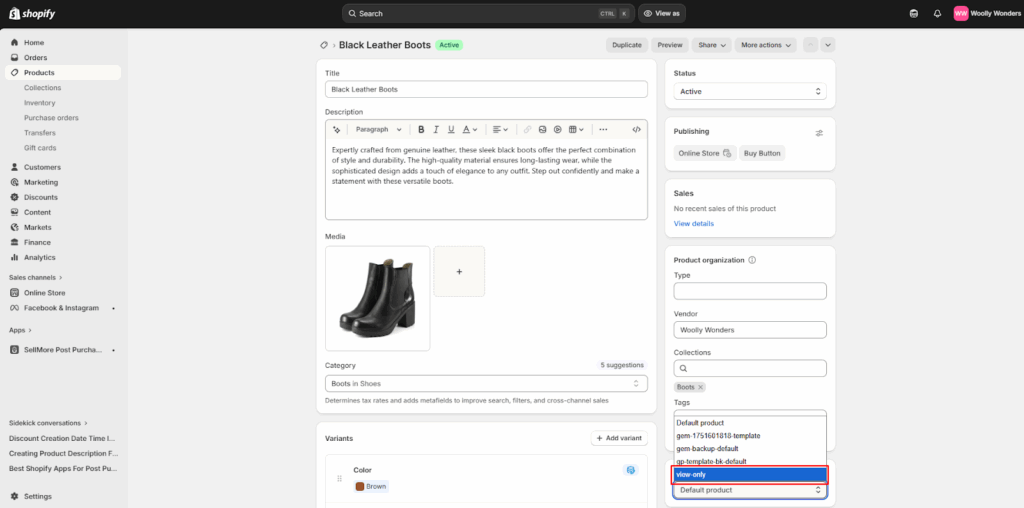
- Click Save. Now go to Products in your Shopify admin, open each product you want to make view-only, scroll to the Online store section, and change the Theme template to your new template (e.g., "view-only").
⚡ Pro Tip
Need to assign this template to many products at once? Use bulk editing: select all products → Bulk edit → Add the "Template" column → Set them all to your new template in one go. Massive time-saver.
Method 2 - Edit Shopify Liquid Code
If you want smarter control like hiding the add-to-cart button for an entire collection, for products tagged a certain way, or based on a metafield, you'll want to edit your Liquid code directly.
This is the most common use case. You add a tag (e.g., view-only) to any product in Shopify admin, and the Liquid code hides the buy button for tagged products automatically.
Step 1: Go to Online Store > Themes > Actions > Edit code.
Step 2: Find your product template file. Depending on your theme, this may be:
- templates/product.liquid
- sections/main-product.liquid
- sections/product-template.liquid
Step 3: Find the Add-to-Cart form section and wrap it in this Liquid conditional:
Liquid
{% comment %} Hide Add to Cart for tagged products {% endcomment %} {% unless product.tags contains 'view-only' %} <!-- Your existing Add to Cart / Buy Now button code here --> {{ form | payment_button }} <button type="submit">Add to cart</button> {% endunless %}
Step 4: Save the file. Now, go to any product in your admin and add the tag view-only. That product's page will no longer show the Add-to-Cart button while all other products remain unaffected.
Conclusion
Making your Shopify products view-only is a practical way to control how customers interact with your store. Whether you're running a wholesale catalog, preparing for a launch, or handling custom orders, disabling the Add-to-Cart button helps you guide the buying experience on your terms.
The best method ultimately depends on your needs and technical comfort level, but both approaches give you the flexibility to turn your store into a browse-only experience whenever required.
Frequently Asked Questions
1. Does Shopify have a built-in "view only" mode?
No. Shopify does not have a native view-only toggle or checkbox in its admin.
2. Will hiding the Add-to-Cart button affect my SEO?
No, hiding the purchase button does not affect how Google indexes your product page. The page remains fully crawlable. In fact, keeping product pages live (without the buy button) is often better for SEO than deleting products entirely.
3. Can I make view-only products available for specific customers only?
Yes. This is best handled through a Shopify app like Locksmith or B2B Wholesale Club. These apps allow you to show or hide the Add-to-Cart button based on customer tags, account status, or login perfect for Shopify login to purchase setups.



About the author
Sajini Annie John
Meet Sajini, a seasoned technical content writer with a passion for e-commerce and expertise in Shopify. She is committed to helping online businesses to thrive through the power of well-crafted content.