






To add reviews to your Shopify store, you usually install a review app from the Shopify App Store (like Judge.me) since Shopify does not include a full product reviews system. After you install the app, go to Online Store > Themes > Customize, turn it on in App embeds, then open your product page template and add the app’s star rating and reviews blocks from the Apps section. Drag and drop them where you want in the store, then save.
Product reviews are still the most credible marketing you can put on a Shopify store. 93% of customers purchase products only after seeing online reviews. Displaying reviews can lift conversion rates significantly.
The good news is you can add reviews to your Shopify product page without touching code.
You just need to pick a solid review app and place its widgets correctly.
Here’s how to add product reviews to your Shopify store in 2026.
How to Add Reviews to Shopify (Step-by-step guide)
1) Pick the right product review app
Before you install anything, look for an app that gives you:
- Star ratings + a full reviews section (so you can show both)
- Photo/video reviews (great for trust)
- Automated review request emails
- Easy import from Amazon, Etsy, or your old site (if you have past reviews)
- Theme Editor blocks (so you can add it like a section/block, not code)
Apps that many new merchants start with include: Judge.me, Loox, Growave, and Yotpo
2) Install the review app from the Shopify App Store
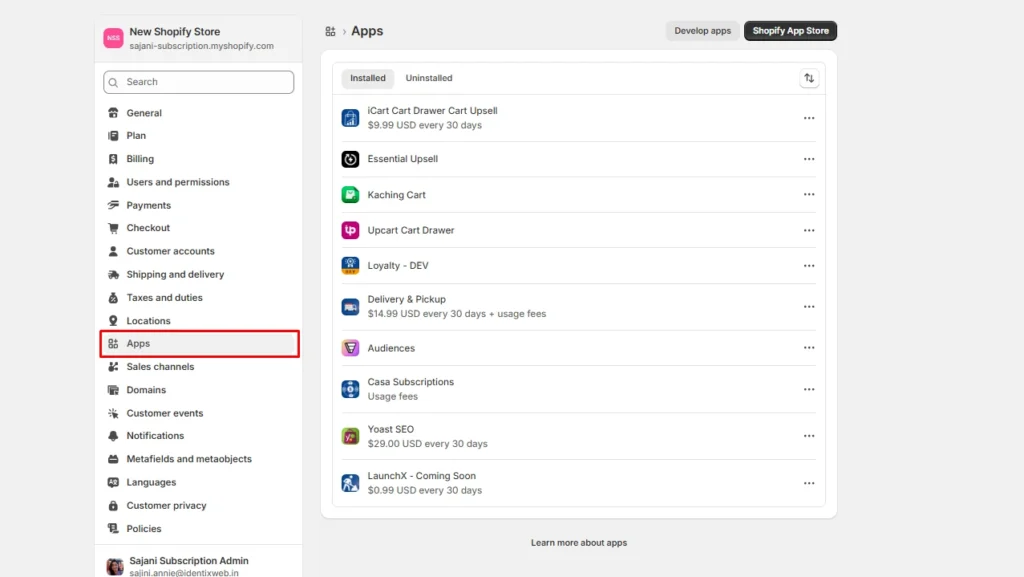
- Open your Shopify admin
- Go to Apps
- Open the Shopify App Store, then search “product reviews” or the app name (like “JudgeMe”)
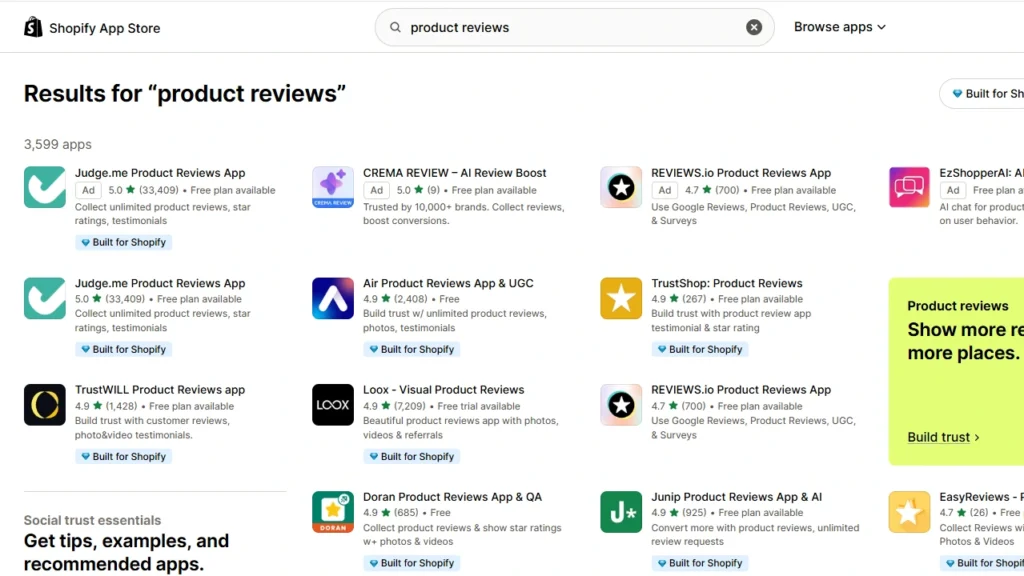
- Click Install (or Add app) and approve the permissions
Tip: After installation, review what the app can access in Settings > Apps so you understand permissions and privacy.
3) Enable the 'app embeds' inside the theme
Many apps use an App embed that needs a toggle turned on before it will show on your storefront.
- Go to Online Store > Themes
- Click Customize
- Open App embeds
- Turn on your review app embed, then Save
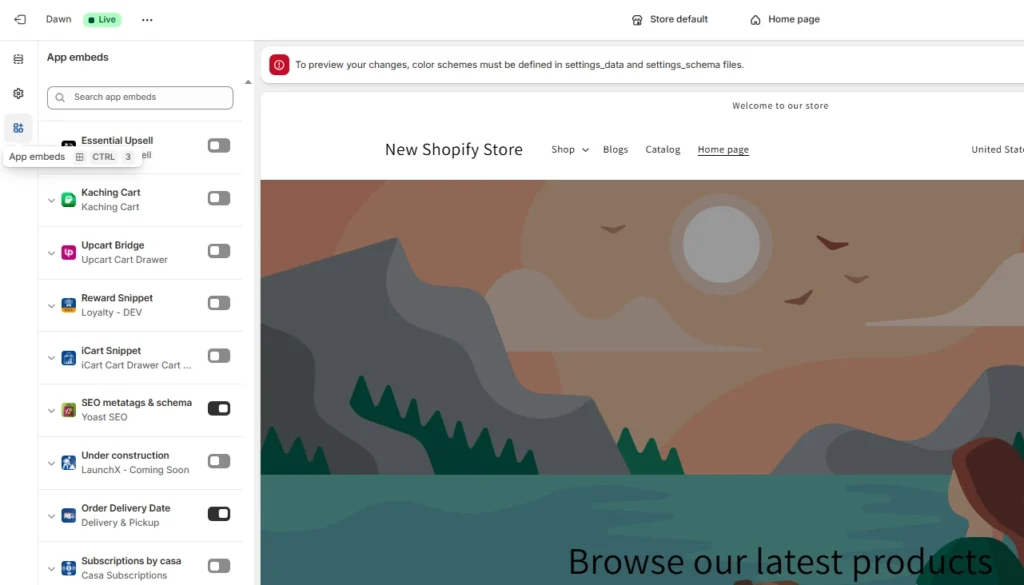
Shopify also notes that app embeds can be turned on and off inside the theme editor. Many embeds start turned off until you enable them.
4) Configure settings inside the app dashboard
Open the app from the Apps section and set up the basics:
- Branding: colors, fonts, widget style
- Review requests: When to send them (for example, a few days after delivery)
- Moderation: Hold reviews for approval if you want
- Import: Bring reviews from other platforms if needed
- Languages: Enable translations if you sell internationally (app dependent)
5) Do a quick test
- Open a product page on desktop and mobile
- Confirm stars show near the title and the reviews section loads
- Submit a test review and confirm it appears (or goes into moderation)
If your widget does not show, it usually means you forgot the app embed toggle or you did not add the app block to the product template.
Can you add reviews to Shopify without an app?
Yes, but it is limited. Most Shopify themes let you add a "Testimonials" or similar section through the theme editor. You manually type in a quote, star rating, and customer name or photo.
This works fine if you just want to feature a handful of great reviews on your homepage. It doesn't let customers submit their own reviews, and you have to update it manually every time.
To actually collect reviews from customers with star ratings and automatically display them on product pages, you need a review app.
Best Shopify review apps to compare in 2026
| Shopify review app | Best for | Standout review features | Pricing |
| Judge.me | New stores, small businesses and merchants looking for the best value | Unlimited product, store, photo and video reviews; automated review requests; review widgets; carousels and Google rich snippets. | Free plan available. Paid plan: $15/month with a 15-day free trial |
| Loox | Visual DTC brands in fashion, beauty, lifestyle and home products | Photo and video reviews, automated review requests, discount incentives, 17+ display widgets, and AI review highlights | Free plan available. Paid plan starts at $49.99/month. |
| Okendo | Growing fashion, beauty, skincare, food and consumer brands that need detailed review data | Photo and video reviews, product grouping, Q&A, review rewards, and AI summaries | Free for up to 50 orders/month. Paid plans start at $19/month. |
| Yotpo | Established and scaling brands that need advanced review distribution and analytics | Photo and video reviews, customizable widgets, AI review summaries, smart sorting, and Google Shopping integration | Free for up to 50 monthly orders. Paid plan starts at $15/month. |
| Growave | Stores wanting to manage reviews, loyalty and customer retention in one platform | Product reviews, review request emails, review attributes, and Google Shopping reviews. | Free for up to 200 orders/month. Paid plan starts at $15/month |
Benefits of adding product reviews
Reviews can lift conversions
Research from the Medill Spiegel Research Center found that showing reviews can significantly increase conversions on your store.
For example, products with five reviews showed a much higher purchase likelihood than products with no reviews.
You build trust faster (especially for new stores)
- Shoppers trust other buyers more than brand claims
- Photo reviews make your product more legit for your customers
- Verified buyer tags make reviews feel real
Reviews can support SEO and rich results
When your review content and ratings appear on product pages, search engines can understand it better. You will become eligible for review snippets if you follow the rules.
Google documents how review and aggregate ratings markup works and what it needs. Shopify also explains how structured data can power rich snippets, including reviews.
How to add reviews to your Shopify homepage
Once your review app is installed, most apps also let you feature reviews outside the product page.
- Open Online Store > Themes > Customize and select Home page from the dropdown at the top
- Click Add section, then look for your review app's block under the Apps category
- Drag it into place. Many stores put it right under the hero banner or above the footer
- Customize the layout (grid, carousel, or slider) and save.
Showing a handful of your best reviews on the homepage builds trust before a visitor even reaches a product page. This matters most for newer stores that don't have brand recognition yet.
Tips for displaying product reviews on Shopify
- Add star ratings near the product title so shoppers see trust signals immediately.
- Put the full review section below the description, so it answers everything right before the purchase decision.
- Show star ratings on collection pages too. This helps high-intent shoppers browse multiple products at once.
- Feature top reviews on your homepage to build trust before visitors reach a product page.
How to get more product reviews on Shopify in 2026?
Here are a few tips that have helped me gain more product reviews in 2026.
Time your review request emails carefully
Set your app to send the request several days after delivery rather than immediately. This way, customers have actually used the product before you ask. You can automatically set review request emails with apps like JudgeMe.
Add SMS or push notification follow-ups
Use apps that support SMS and push notifications. Reply rates are often higher than email alone on mobile-first stores.
Offer an incentive
Offer a small discount code for a completed review, especially one with a photo. Keep it small so reviews stay honest rather than reward-driven.
Ask specific questions
In your review request template, you can ask questions regarding fit, durability, and how it compares to similar products. Specific questions get more detailed, useful reviews than a common ‘leave a review’ question.
Reply to the reviews you already have
Responding, especially to negative ones, signals to future reviewers that their feedback actually gets read.
Import reviews you already have
Import reviews from Amazon, Etsy, AliExpress, or a previous platform so you're not starting from zero.
Reviews get you sales in 2026
If you want to increase sales in 2026, add product reviews before you spend more on ads.
Reviews make your store feel real, even if you launched yesterday.
Start with one solid review app, enable the embed, and place the star rating near the title. Put the full review section where shoppers make the final decision.
FAQs
1. How to add reviews to Shopify?
Install a product review app from the Shopify App Store, then go to Online Store > Themes > Customize and turn it on in App embeds. Next, open your product page template and add the app’s star rating and reviews blocks from the Apps section, then save.
2. How to add Google customer reviews to a Shopify website?
Use a Google Reviews widget app, or generate a widget from a provider and paste the embed code into a Custom Liquid/HTML area in your theme, then save. If you use an app, you might also need to enable it in App embeds so the widget actually shows on the storefront.
3. How to set up automatic reviews on Shopify?
For Shop reviews, go to Shopify Admin > Sales channels > Shop > Settings. Choose how many days after delivery the review request should be sent. Shopify currently allows an interval of 1 to 180 days. For reviews displayed on your online store, install an app such as JudgeMe or Loox and configure its automated email or SMS requests to trigger after fulfilment or delivery.
4. How to moderate negative reviews on Shopify?
Open Shopify Admin > Shop > Reviews to reply professionally to a negative review or report it when it contains spam, harassment, personal information, unrelated content or another policy violation. Genuine negative reviews should not be removed simply because of their rating; acknowledge the issue, offer a solution and use the feedback to improve the customer experience.
5. How to add AliExpress reviews on Shopify?
Install an AliExpress review importer, select the matching product, paste the AliExpress product URL and filter the reviews by rating, photos or review count before importing them. JudgeMe’s free importer syncs reviews directly with JudgeMe or exports them as a CSV. But imported or CSV-uploaded reviews might not qualify for display in Shop because Shopify requires verified customer, order and product IDs.
6. Which is the best review app for Shopify?
I found JudgeMe the best overall review app for most Shopify stores. Its free plan includes unlimited product, store, photo and video reviews, customizable widgets, automatic requests and Shop synchronization. Loox is better for visually focused brands, while Okendo or Yotpo suit larger stores that need advanced customer attributes, analytics and review syndication.



About the author
Sajini Annie John
Meet Sajini, a seasoned technical content writer with a passion for e-commerce and expertise in Shopify. She is committed to helping online businesses to thrive through the power of well-crafted content.