Blog
Gather knowledge about the latest insights, updates, tips, and tricks in the Ecommerce industry.

5 Min • 20 March 2026
How Anua Unlocked 5X AOV Growth with iCart’s Smart Cart Features
delivery customization Challenges Solutions drive results Scale business delivery customization Challenges Solutions drive results Scale business delivery customization Challenges Solutions drive results Scale business delivery customization Challenges Solutions drive results Scale business Anua is a globally recognized Korean skincare brand known for its minimalist philosophy and focus on gentle yet effective formulations. Built on the idea of simplifying skincare routines, Anua develops products that deliver visible results while avoiding harsh or irritating components, making them suitable for sensitive skin types. Initially using a traditional full cart experience, Anua transitioned to iCart’s side cart solution in August 2025, to create a more seamless and engaging shopping journey. This shift allowed customers to easily explore complementary skincare products without disrupting their browsing flow, making it more intuitive to discover items that fit into a complete routine. By surfacing relevant recommendations directly within the cart, the brand enhanced product visibility across its range. Challenges Before implementing iCart’s side cart solution, Anua faced limitations with their existing full cart experience, which created friction in the customer journey. The traditional cart setup redirected users away from product pages, interrupting their browsing flow and reducing opportunities to explore additional products. As a skincare brand built around routines rather than single-item purchases, this made it difficult to effectively showcase complementary products and encourage customers to build complete regimens. Additionally, the lack of in-cart personalization and strategic upsell opportunities meant that customers were often unaware of related products that could enhance their skincare results. This limited the brand’s ability to increase average order value (AOV) and fully leverage its diverse product range. Anua needed a more dynamic and intuitive cart experience that could seamlessly introduce relevant recommendations while maintaining a smooth and engaging shopping journey. ❌ Cart Value Barriers Low average order value (AOV) due to single-item focus Most customers completed purchases with one primary product instead of building multi-step routines. Cart abandonment near shipping thresholds Customers were not clearly informed or motivated to reach free shipping or discount thresholds. Missed savings opportunities Customers were unaware of potential value in purchasing bundled routines or multiple complementary products. ❌ Absence of Progress-Based Incentives No free shipping or discount progress bar Customers were not motivated to increase their cart value due to lack of visible incentives. Missing tiered rewards system There were no structured milestones (e.g., “Spend more to unlock offers”), reducing upsell opportunities. ❌ Ineffective Cart UI/UX (Pre-Side Cart) Full-page cart disrupted shopping flowCustomers had to leave their browsing journey, increasing friction and drop-offs. No quick add/remove functionality Users couldn’t easily modify their cart or add suggested products without navigating away. Solution To overcome these challenges, Anua implemented iCart’s side cart solution to transform their traditional cart into a high-converting, interactive experience. By replacing the full-page cart with a seamless side cart, the brand ensured that customers could continue browsing while viewing their cart, significantly reducing friction in the shopping journey. Additionally, features like product recommendations & progress bars for free shipping and discounts motivated customers to increase their cart value. By combining personalization, incentive-driven messaging, and a user-friendly interface, Anua successfully turned their cart into a powerful revenue-driving touchpoint rather than just a checkout step. To maximize their cart effectiveness, they implemented two powerful features: ✅ Progress Bar with Multi-Reward Incentives Implemented a tiered progress bar to encourage higher cart value Customers are guided with a clear message like “Add $3.10 to unlock secret offer,” motivating them to continue adding products. Generated over $5M+ in revenue through incentive-driven cart progression Used product-based rewards to align with customer intent Instead of generic discounts, Anua incentivized purchases with relevant skincare items like Dark Spot Pads and mini serums. Built visual motivation for routine expansion As customers add products, they can clearly track progress toward unlocking multiple rewards, encouraging them to build a complete skincare routine. ✅ Product Recommendations Implemented “Frequently Bought Together” recommendations Customers adding a single product (e.g., toner) are shown complementary items like serums, moisturizers, or pads to complete their routine. Generated over 275K revenue through in-cart recommendations Encouraged full skincare regimen building Instead of isolated purchases, the cart suggests step-by-step product combinations aligned with common skincare routines. Increased product discovery at the final stage By surfacing relevant items directly in the cart, Anua ensured customers explore more of their catalog without leaving the checkout flow. Results Achieved in Last 180 Days 22932 Total Store Orders 45101 Total iCart Orders 5X iCart Generated AOV 65.70% Upsell Affected Conversion Rate These improvements reflect a clear shift in customer behavior on Anua’s store. Cart abandonment reduced as shoppers discovered complementary skincare products and felt encouraged to build complete routines. Engagement also increased, with customers interacting more with in-cart recommendations and exploring relevant product pairings. Results & Impact And...Results is Our Main Clarification By implementing iCart’s cart drawer, product recommendations, and progress bar, Anua transformed its cart into a high-performing conversion touchpoint. Shopping Experience Enhancement The improved cart experience encouraged customers to discover complementary products and understand the value of sustainable beauty routines. For instance, the clear presentation of subscription savings alongside one-time purchase options helped customers make more informed decisions about their long-term hair care needs. As Anua continues to optimize its cart experience, the brand is closely monitoring: Routine-based purchasing behavior - tracking how customers move from single items to multi-step regimens Engagement with in-cart recommendations - measuring interaction with suggested products Cart value progression - analyzing how incentives influence higher spending [related_cases_slider] Ready to Write Your Success Story? Try icart App Join successful businesses like Anua and Master your delivery scheduling Delight customers with precise timing Grow your special occasion orders Expand your delivery reach
Read Blog
6 Min • 23 May 2026
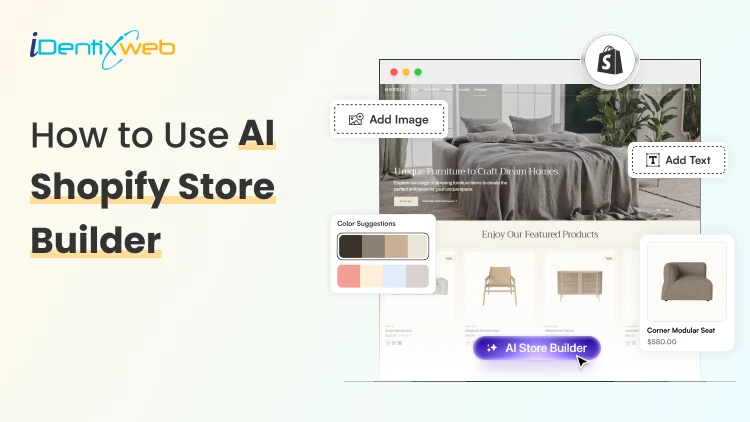
How to Use AI Shopify Store Builder to Create Your Store in Minutes
Setting up a Shopify store used to take days figuring out your theme, writing product descriptions, organizing collections, and making everything look professional. But with the AI Shopify store builder, all of that is changing fast. Today, merchants are launching complete, polished stores in a matter of minutes, not days. If you're a Shopify merchant exploring how AI can do the heavy lifting for you, you're in the right place. In this guide, we'll walk you through everything. What Is AI Shopify Store Builder? Shopify AI Store Builder is an AI-powered ecommerce website generator by Shopify that helps users create a Shopify storefront in seconds using a simple text prompt. Instead of manually designing a website, users describe their business idea; for example, “minimalist skincare brand for sensitive skin” and the AI automatically generates a complete online store layout with branding, homepage sections, colors, images, and marketing copy. Key features include: AI-generated store designs Automatic homepage creation Mobile-responsive layouts Built-in branding suggestions Editable themes inside Shopify Fast setup process Step-by-Step: How to Use an AI Shopify Store Builder Step 1 - Open the Shopify AI Store Builder Go to the Shopify AI Store Builder Page A “Generate” button Step 2 - Write Your Store Prompt Now you will see a short text input field. The AI uses a short description (roughly 100 characters) to generate your store. Add your prompt in that field and click on “Generate” button. Step 4 - Review the Generated Store Designs In the next step, you can describe your store and Shopify typically generates several variations/themes. You can see multiple store designs from which you can select any one. Step 5 - Choose the Best Design Select the design closest to your brand vision and click on choose this design button. Remember: You can edit everything later Focus on structure first Don’t obsess over perfection yet After selection: Shopify creates your actual store The AI-generated theme gets added automatically Step 6 - Create Your Shopify Account If you are not logged in yet enter your email & password. Or if you are new to Shopify create your Shopify account. Step 7 - Enter the Shopify Admin Dashboard After signup, you’ll land inside the Shopify admin panel and you can see your AI-generated storefront is now installed. Step 8 - Customize Your Theme You can now customize your theme by and change the colors, sections, layouts, text, font styles, etc as per your choice. Step 9 - Replace AI Placeholder Content This is one of the most important steps. Replace Placeholder images, AI-generated text, Demo products, Generic messaging with Real product photos, Real product descriptions & actual pricing. Remember AI gives you a starting structure; not a finished brand. Step 10 - Add Products After settin up add your products in your store and add the product details like price, inventory, vendor name, etc. Step 11 - Set Up Navigation Go to Online Store > Navigation and create main menu like home, shop, about, contact & footer menus as per your need. Step 12 - Configure Payments Go to Settings > Payments and add your payment methods. Test payments before launch. Tips to Maximize Your AI-Built Store Once your AI store builder for Shopify has done the initial setup, here are the strategies that separate a mediocre AI store from a high-converting one: 1. Personalize Your AI-Generated Copy The AI gives you a draft. Your job is to make it sound like YOU. Add your brand story, your "why," and specific benefits that only your products offer. Customers connect with authenticity, not generic text. 2. Invest in Great Product Photography This is the single biggest driver of conversions that AI cannot do for you. Studies show that 75% of online shoppers rely on product photos when making a purchase decision. (Source: BigCommerce.com). Use natural lighting, multiple angles, and lifestyle shots. 3. Build a Smart Cart Experience Once your AI-built store is live, the next step is maximizing every sale. iCart Cart Drawer & Cart Upsell lets you add product upsells, cross-sells, free shipping progress bars, and promotional announcements directly in your cart drawer all without touching code. Merchants using iCart report an average 20-30% increase in average order value (AOV). 4. Speed-Test Your Store AI-built themes can sometimes add unnecessary scripts. Run your store through Google PageSpeed Insights and aim for a score above 70 on mobile. A 1-second delay in load time can reduce conversions. 5. Set Up Email Capture From Day One Your AI store builder may suggest a pop-up or footer email form. Use it. Building your email list from launch is one of the smartest marketing moves you can make. Tools like Klaviyo integrate seamlessly with Shopify. Conclusion The emergence of the AI Shopify store builder is genuinely one of the most exciting developments in ecommerce in recent years. What used to require weeks of design work, significant budget, or deep technical knowledge can now be scaffolded in minutes. The merchants who win are the ones who use the AI Shopify store builder to save time on the setup, then invest that saved time into what really matters: knowing their customers, telling their brand story authentically, and continuously optimizing their store's performance. Frequently Asked Questions 1. What is the best AI Shopify store builder available right now? The best AI store builder for Shopify depends on your needs. Shopify Magic (native) is the most accessible and comes included with your Shopify plan. For advanced design control, GemPages AI and Instant Page Builder are popular choices. For pure content generation, tools like Jasper AI or ChatGPT integrated with Shopify can be powerful. Start with Shopify Magic and expand from there. 2. Can I build a Shopify store completely with AI, without any coding? Yes, absolutely. A Shopify AI store builder is specifically designed to be no-code. You won't need to write a single line of code to use Shopify Magic or most third-party AI builder tools. Shopify's platform itself is built for non-developers. 3. How long does it take to build a Shopify store with AI? The initial AI-generated store structure can be ready in as little as 5 to 15 minutes. However, adding your own product photos, reviewing content, configuring payments and shipping, and doing final testing typically takes 2 to 4 hours for a simple store. A more complex store with many products may take a full day. 4. Does an AI-built Shopify store rank on Google? An AI-built store can absolutely rank on Google, but it requires ongoing SEO work beyond the initial AI setup. Shopify Magic configures basic meta tags, but you'll need to create a solid content strategy, get backlinks, and optimize your product pages for target keywords. Consider working with an 5. What is Shopify Magic and how is it different from a standalone AI store builder? Shopify Magic is Shopify's native AI feature suite embedded directly in the Shopify admin. It helps with product descriptions, email subject lines, FAQ suggestions, and more. Standalone AI Shopify store builders (like GemPages AI) are third-party apps that focus specifically on design and page building. Both can work together.
9 Min • 15 May 2026
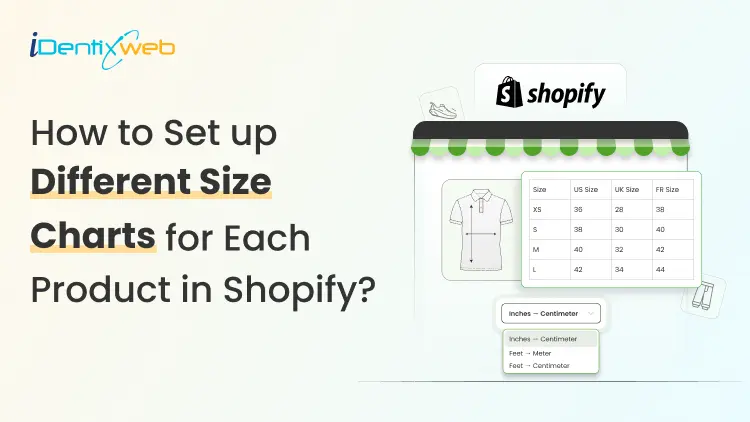
How to Add Different Size Guides with Metafields in Shopify? (For Each Product)
You sell tees, hoodies, sneakers, and pet collars in one store. Using one generic size chart for all of them? This increases your return rate significantly. Almost all fashion returns come down to fit. Good news: you can show a different size guide for every product without an app, without code, and without hiring a developer. I've built this setup on Dawn, Sense, Crave, and a couple of custom themes. The steps below work on any Online Store 2.0 theme. You can skip the heavy lifting with TablePress TablePress Size Chart & Guide is the best size chart app for Shopify. You can add a clean, mobile-responsive size chart in one click. No code, no theme edits. Pick a template, match your brand, and ship in minutes. Worth a look before you commit to the manual metafield route below. What's a size chart metafield in Shopify? A metafield is a custom field you add onto a product, collection, or page to store extra info that Shopify doesn't capture by default. Pair one with a size chart, and you get a single definition that pulls the right chart for each product. Edit once, and you don't need to copy-paste the same chart into 40 product descriptions. Think of the metafield as a quiet label telling your theme: "for this product, show that chart." Apps vs metafields: Which one do you actually need? Quick rule from my own builds: Under 50 SKUs, English-only store, simple measurements: stick with metafields. 100+ SKUs, multi-language. AI fit recommendations, or bulk CSV uploads: An app is what I would recommend. If you are a new store in 2026, start with metafields. You can always migrate to an app later when the catalog grows. Quick eligibility check before you add different size guides Three boxes to tick: Your theme is Online Store 2.0 (Dawn, Sense, Refresh, Crave, Impulse, Studio, and most modern free or paid themes qualify). Your Size option is already set up on the product. If not, sort that first using my Shopify size variants guide. If your size option isn't set up yet (XS, S, M, L), my How to Add Size on Shopify to Products guide covers that part first. You have admin access to Settings > Custom data. How to add different size guides with metafields in Shopify? Step 1: Plan the size guides you actually need List the product groups that need their own chart. Here’s an example list from a recent client build: Men's t-shirts Women's dresses Kids' hoodies Unisex sneakers Pet collars Now pick a format: Rich text table inside a Shopify page (easiest to edit) Image upload (good for design-heavy charts) PDF (works, but not good for mobile) Step 2: Build a page for each size chart Shopify admin > Online Store > Pages > Add page. Name each page by category, not by product. For example: "Men's Tee Size Chart" works. Build the chart inside the rich text editor or upload your image. Set visibility to Visible. Hidden pages will break the metafield link. Repeat for every chart you listed in Step 1. Step 3: Create the size chart metafield definition Settings > Custom data > Products > Add definition. Fill in: Name: Size chart Namespace and key: custom.size_chart (Shopify usually auto-fills) Type: Page reference (my default for the page method) Storefront access: keep it enabled Click Save. Quick note for the File method: pick File instead of Page reference and accept image files only. The display step changes a bit. Covered below. Step 4: Connect the metafield to your theme Open the theme editor on the Default product template. Click into the product information section. Add a new block, pick Pop-up. Click the dynamic source icon (looks like a small database icon next to the heading field). Pick the size chart from the list. Customize the link label. "View size guide" or "Find your fit" reads better than the default for shoppers. Save this template. Step 5: Assign a unique chart to each product Products > pick a product > scroll to the Metafields box > Size chart. Select the matching page from Step 2. Then click Save. Bulk tip: Use Shopify's bulk editor to assign the same chart to a full collection. This saves time if you've got 30 men's tees that share one chart. Step 6: Preview, test, catch edge cases Open the storefront. Check 3 products with different charts assigned. Click the size guide link on each one. Test on mobile too. Almost half of Shopify's traffic is mobile now. Your size chart for different products needs to look good on mobile. 3 ways to show different size guides for different products Picked the page method above? You're golden. Skip ahead to troubleshooting. Wanted options? Here are all three. Method 1: Page reference metafield (my default) Best for: 90% of new Shopify stores. How it works: one page per chart, metafield points to the right page per product. Wins: no code, mobile-friendly, edit once and updates everywhere. Drawback: needs an Online Store 2.0 theme with dynamic source support. Method 2: File metafield with a Liquid snippet Best for: Stores where size charts already live as PNGs from your designer. How it works: upload the chart as an image file in the metafield, drop a Liquid snippet in the product template. Paste into a Custom Liquid block: liquid {% if product.metafields.custom.size_chart.value != blank %} {{ product.metafields.custom.size_chart | image_url: width: 600 | image_tag }} {% endif %} Wins: works on vintage themes, fits design-heavy charts. Drawback: You need to code, and the chart sits inline instead of in a pop-up. Common issues when adding a size chart in shopify (And fixes) Real problems I've debugged on real client stores: The size guide link shows on products with no chart assigned Cause: the theme block doesn't check if the metafield is blank. Fix: wrap the block in a conditional Liquid check, or assign a default "general" chart page to every product. Metafield missing from the theme editor Cause: theme isn't Online Store 2.0. Fix: switch to Dawn (free) or any 2.0-compatible theme, or use the Liquid snippet method instead. Chart looks fine on desktop, breaks on mobile Cause: the chart image is too wide, or the rich text table has no responsive styling. Fix: keep tables under 5 columns. Compress images. Test on a phone, not just Chrome DevTools. Image won't load Cause: file is too large (over 20MB) or is in an unsupported format. Fix: stick with JPG, PNG, or WebP. Keep under 2MB. Pop-up opens blank Cause: the linked page is hidden, or the page is empty. Fix: re-open the page, set visibility to Visible, and confirm content is saved. Where metafields stop working (and you'll want an app) Honest limits I've hit on bigger client stores: No built-in cm to inches conversion. International shoppers do the math. No fit quiz or AI size recommendation. No CSV import for hundreds of charts. You'll click through every product manually. Per-product assignment gets tedious past 100 SKUs. Multi-language stores need translation workarounds since pages don't auto-translate cleanly. Hit two or more of these? Time to look at apps. Which is the best size chart app for Shopify? TablePress Size Chart and Guide, Kiwi Size Chart & Recommender, MP Size Chart & Size Guide (formerly Avada), BF Size Charts & Size Guide, Jotly Size Chart & Size Guide, and Clothes Size Chart & Size Guide are a few of the apps for adding size charts I recommended for merchants. Pro tips before adding a size chart in Shopify? Embed a "How to measure" graphic inside every chart page. Saves customers from guessing. Match the chart's tone with your product copy. I have seen a lot of mismatched brand tone and size chart copy. Sync the chart with your returns policy. Both should reference the same body measurements. Mention sizing in product photography (For example, Model is 5'10", wearing size M). Review return data monthly. Whichever product gets the most sizing-related returns, rework that chart first. Quick recap The metafield method is free, native, and good enough for most new Shopify stores. Apps earn their fee once you hit 100+ SKUs, go multi-language, or need AI fit features. Got questions? Drop them, and I'll cover the most common ones in the FAQ section below. FAQs 1. How to add a size chart to Shopify? You can add size charts in Shopify using size chart apps or metafields inside the Shopify settings. 2. How to add different size guides with metafields in Shopify? Create a separate page for each size chart, then build a Page reference metafield under Settings > Custom data > Products called Size chart. Connect it to your product template using a Pop-up block with a dynamic source, and assign the right chart page to each product from the Metafields box. Edit once and apply everywhere. 3. Which is the best size chart app for Shopify? TablePress Size Chart & Guide is my top pick for new stores. It has a ‘built for Shopify’ badge and lets you add a fully responsive size chart in one click without code. For larger stores that need AI fit recommendations or unit conversion, Kiwi Size Chart & Recommender is a solid alternative. 4. What are the benefits of using a size chart in online stores? A clear size chart cuts returns, boosts conversion rates, and builds shopper trust before they even hit Add to Cart. Most of the fashion stores get returns because of size issues. An accurate size reduces both returns and customer service tickets, which frees up hours for actually growing the store.
8 Min • 20 May 2026
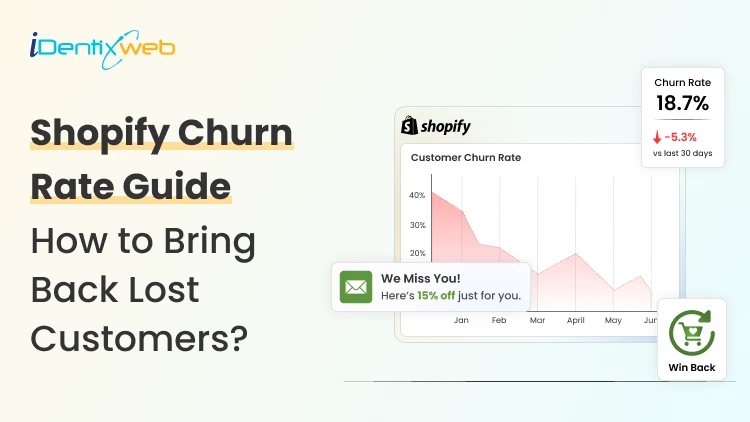
Shopify Churn Rate 2026: How to Bring Back Lost Customers (Expert Guide)
I've spent the last few years helping Shopify store owners plug their sales leak, and the same pattern shows up every single time. Owners invest in ads while their best buyers leave their stores, never to return. According to the latest data, the average churn rate across all industries is 20-30% (Source). The Shopify churn rate in 2026 confirms what I see with merchants every week. Here's the good news. Churn is fixable. Lost customers are easier and cheaper to win back than chasing strangers on Meta ads. I’m going to walk you through what churn really means, where you stand against industry benchmarks, why your customers are leaving your business, and the exact 6-step win-back playbook I run on real Shopify stores. What is Shopify's Churn Rate? Churn rate in Shopify is the percentage of customers who stop buying from your store within a set time period. For example, if 100 people bought from you last quarter and 30 never came back, your churn rate is 30%. Why does this matter more now than ever? Ad costs keep climbing. AI-driven competitors are spinning up overnight. Buyers have more options than they can handle. According to the latest Shopify update, AI-referred shoppers convert at almost 50% higher rate. Shopify's Current Churn Rate 2026: The Real Numbers Shopify's churn rate in 2026 baseline sits between 70% and 75% for the average e-commerce store. Painful, but true. Here's what the data actually says: Annual e-commerce churn: 70–75% (Source) Shopify merchant churn: ~28% per year New store survival past 90 days: only 10% Traditional retail retention: 63% annually 95% of stores fail before they even hit their first quarter, mostly because the owner never built a system to bring buyers back. Survival depends on what you do on days 0–90 with the customers you already have. Shopify churn rate benchmarks by industry Here are the 2026 repeat purchase rates by industry (Source) CBD: 36.2% Grocery and food delivery: 65.2% Pet supplies: 30%+ Health and supplements: 29% Beauty and cosmetics: 25.9% Fashion: 24.4% (luxury drops to just 9.9%) Electronics: 18% Home and furniture: 14.7% If you're below your industry average, it’s fixable. If you're above? You still have room to push higher. Top performers in every category beat the benchmark by 2x. Want to Lower Churn? Start With Your Cart A stronger first-purchase experience builds the kind of loyalty that keeps buyers coming back. The cart is where most stores quietly leak revenue. iCart Cart Drawer Cart Upsell turns your default Shopify cart into a conversion engine with a sticky slide-out drawer, AI-powered upsells, free shipping progress bars, volume discounts, and urgency timers. Stores I've seen install it usually push their AOV up by 15–30% within the first month, which directly reduces the churn problem before it even starts. How to calculate your Shopify churn rate (with examples) Pull up your Shopify dashboard. Here's the formula: Churn rate = (lost customers ÷ total customers at start of period) × 100 Quick example. You started the quarter with 1,000 customers. By the end, 200 hadn't been bought again. Your quarterly churn rate is 20%. Another simple version if you already track retention: Churn rate = 100 − retention rate So if 75 out of 100 customers stay, your retention rate is 75%, and your churn rate is 25%. Here’s how you can do a simple self-audit: Open Shopify Analytics Compare the returning vs. the first-time customer rate Calculate churn for the last 3 months, 6 months, and 12 months Look at the trend How eCommerce failure happens: Why do Shopify customers leave? After auditing more than 100 Shopify stores, here's what kills retention. Most of the time, store owners are doing one or more of these without realizing it. No campaigns after checkout You take their money, ship the product, send a tracking link, and they receive the product and disappear. No thank-you note, no product tips through email or SMS. Customers forget you exist within 30 days. Bad customer service Research shows 67% (Source) of churn could be prevented if the issue were resolved during the first interaction. Slow replies kill loyalty faster than a bad product. Slow site speed and clunky mobile UX If your store takes more than 3 seconds to load on mobile, you've already lost a chunk of buyers. They won't even tell you they're leaving. Generic email blasts Sending the same message to a first-time buyer and a VIP customer won't do you any good. Buyers can smell a mass email instantly. Too many discounts I have experienced this a lot. Promos every week will train customers to wait for the next sale. This way, you stop being a brand and start being a coupon source for customers. Failed payments on subscriptions Involuntary churn from expired cards leads to 20–40% of subscription losses. Most stores never set up a proper flow for retention for subscription losses. I have written a detailed breakdown of customer retention strategies you can implement in 2026. How to reduce Shopify’s churn rate? My 5-step playbook Here's the system I run on real Shopify stores. Works for DTC, subscription, fashion, supplements, and home decor. Step 1: Segment your lapsed customers Define what "lapsed" means for your store. For most non-subscription brands, 90+ days without a purchase is the sweet spot. Subscription brands can go shorter, around 30–45 days post-cancellation. Then split them by: Past total spend (VIP vs. casual) Product category bought Last channel they engaged with (email, SMS, social) Step 2: Run a churn survey Before you launch any campaign, send a single-question email: "What stopped you from buying again?" Common answers reveal real problems. Slow shipping, ran out of money, found a competitor, didn't like the product, forgot about the brand. Each one tells you what to fix and what offer to make. Create a simple Google form with a dropdown to start this survey. Step 3: Build a retention email + SMS sequence Here's the timing that works: Day 7: Soft "we miss you" nudge with new arrivals or a content piece Day 14: Value reminder, highlight what makes your brand worth coming back to Day 30: Real incentive, 15–25% off, free shipping, or a free add-on Day 60: Last-chance message with genuine urgency Step 4: Fix the reason they left If shipping is slow, fix logistics first or if support is unresponsive, hire help or install a chatbot Bringing customers back to the same problems just speeds up the second churn. Step 5: Track your retention campaign Recovering a customer isn't enough. You need them to stick. Watch this number: do 50%+ of recovered customers make a third purchase within 90 days? If yes, your win-back creates real reactivation. If they redeem the offer and vanish, you bought a transaction, not a relationship. Compare win-back cohort LTV against new customer LTV. In most stores I audit, recovered customers actually have higher LTV than fresh ones because they already know the brand. Tools I use to reduce churn rate in Shopify (2026) A few I trust and use regularly: Klaviyo or Omnisend for email and SMS automation Recharge or Loop Subscriptions for subscription dunning and flexibility Gorgias for fast customer support Smile.io or Yotpo for simple loyalty programs 2026 trends shaping Shopify retention I see 4 trends in retention in the Shopify ecosystem for merchants. AI-driven churn prediction inside Shopify is becoming useful Predictive risk scoring flags customers about to drop off before they do Conversational commerce through AI chat handles 60–80% of routine queries 24/7 Real-time AI-translated shipping updates reduce first-order churn by around 15% KPIs to track for Shopify churn rate in 2026 Churn rate alone won't give you the full picture. I track these along Repeat Purchase Rate (the most underrated number) Customer Lifetime Value (CLV) trend month over month 30/60/90 day cohort retention to spot the cliff Average Order Value (AOV) for win-back cohorts vs. new buyers Win-back recovery rate (what % of lapsed customers come back) Do not ignore your churn rate in 2026 You can decrease your churn rate easily. I have always experienced that lost customers are the cheapest growth channel. Every store I've helped grow revenue started with looking at who already bought from them. Pick one section of this guide. Just one. Run it this week. Whether it's a churn survey, a 4-touch win-back sequence, or fixing your post-purchase emails, momentum starts with one move. FAQs 1. What is Shopify’s current churn rate? Shopify's current churn rate for 2026 sits at roughly 28% annual merchant churn, with only 10% of new stores surviving past 90 days. Your number will swing higher or lower depending on your industry and how seriously you treat retention. 2. How to calculate ecommerce churn rate? Use this formula: Churn Rate = (Lost Customers ÷ Total Customers at Start of Period) × 100. If you started the month with 500 customers and 75 didn't come back, your churn rate is 15%. 3. What is the retention rate in Shopify? The average customer retention rate for Shopify stores in 2026 hovers around 25–30%, basically the flip side of that 70–75% churn number. Top performers in categories like grocery and CBD pull retention rates of 36–65%, while fashion and electronics often sit below 20%. A good Shopify retention rate is whatever beats your industry benchmark by at least 5–10 percentage points.
Vineet Nair
8 Min • 10 April 2026
98 Views
Sajini Annie John
1 Min • 7 April 2026
113 Views
Vineet Nair
14 Min • 7 April 2026
150 Views
![How to Automate Shopify Post-purchase Email? [Examples + Tips to Convert]](https://www.identixweb.com/wp-content/uploads/2026/04/26-03-Thu-Blog-How-to-Streamline-Shopify-Post-purchase-Email-Flow_.webp "How to Automate Shopify Post-purchase Email? [Examples + Tips to Convert]")
Vineet Nair
9 Min • 6 April 2026
117 Views
Sajini Annie John
2 Min • 3 April 2026
114 Views
Vineet Nair
7 Min • 3 April 2026
125 Views
Sajini Annie John
7 Min • 2 April 2026
106 Views
Sajini Annie John
6 Min • 31 March 2026
124 Views
Sajini Annie John
5 Min • 31 March 2026
113 Views
![How to Create a Discount Code on Shopify [Easy New Tutorial]](https://www.identixweb.com/wp-content/uploads/2026/03/26-03-Thu-Blog-How-to-Easily-Create-a-Discount-Code-on-Shopify_-2.webp "How to Create a Discount Code on Shopify [Easy New Tutorial]")
Vineet Nair
11 Min • 31 March 2026
115 Views
Sajini Annie John
9 Min • 27 March 2026
117 Views

Sajini Annie John
7 Min • 27 March 2026
120 Views